The Zoom integration allows you to sync your Zoom Webinars with your Event pages. By connecting a Zoom webinar to an event page, you can automatically pass registrant details to Zoom and collect participation data back in Engaging Networks.
Once you’ve connected Zoom to your Engaging Networks Event, your page can pass the registered attendees' first name, last name, and email address (the data captured in the attendees block) to the Zoom Webinar connected to your event page. The attendees will then receive the Zoom invite via email from your Zoom account.
Setting up the Zoom Integration
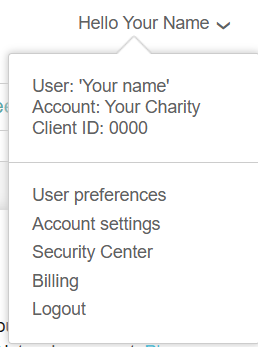
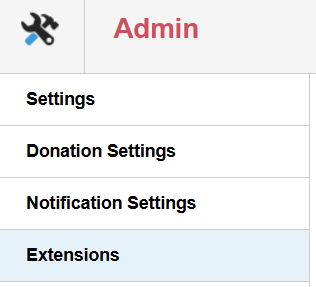
Go to Hello ‘Your Name’ > Account Settings > Extensions.
Select Intergrations > Zoom
The Zoom account being connected must be an admin and have webinar permissions enabled.
Select
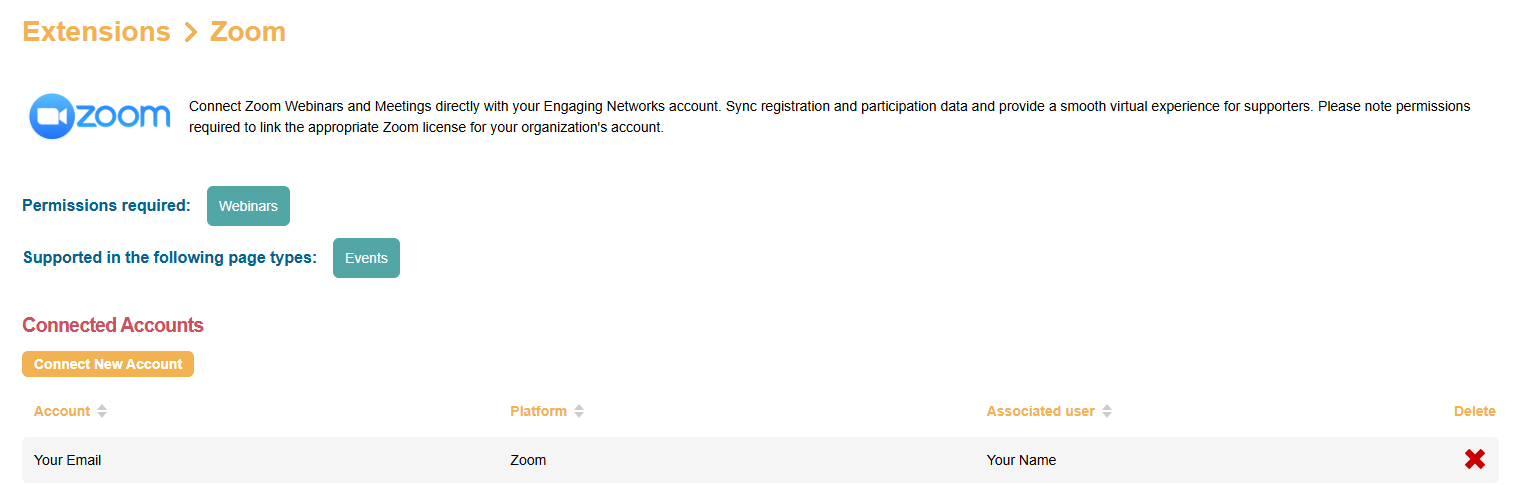
‘Connect New Account’ on the Zoom page
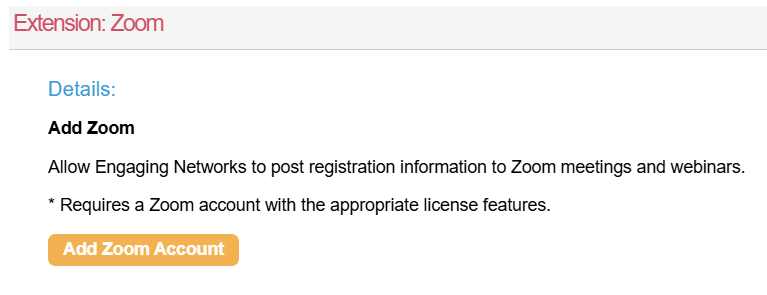
'Add Zoom Account' extension pop-up .
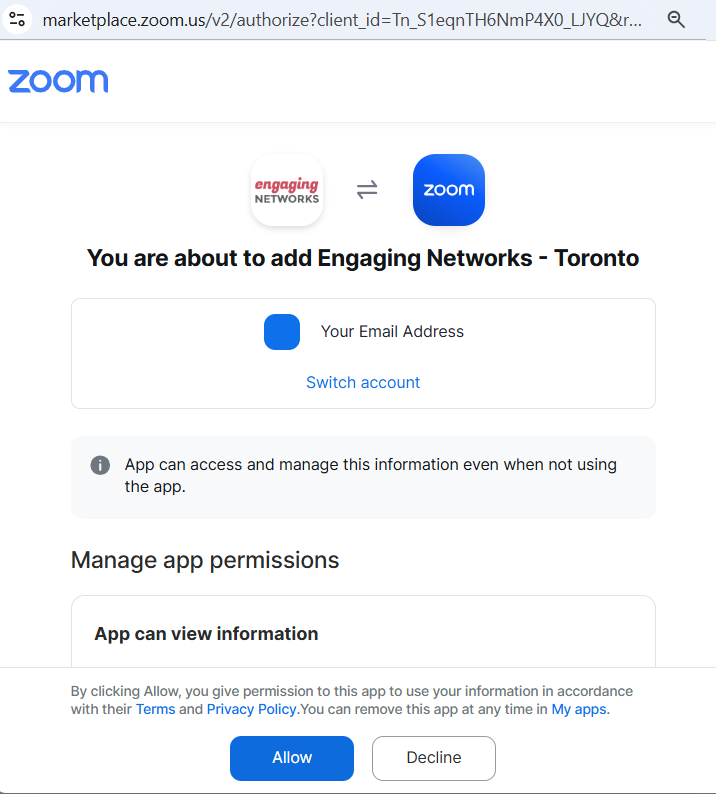
In the Zoom Marketplace, select ‘Allow’ to complete the connection between Engaging Networks and Zoom. If successful, the account will display under ‘Connected Accounts’
Connecting a Zoom Webinar to your Event Page
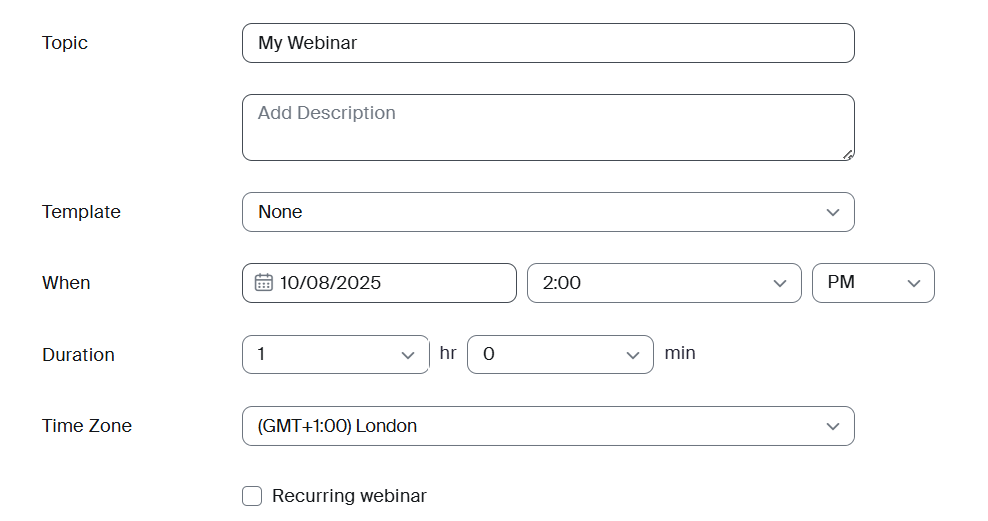
In the connected Zoom account, go to: Webinars > Schedule a Webinar.
Complete the appropriate sections in the scheduler, ensuring that you select 'Registration Required' and then select the schedule.
Disabling registrations prevents Zoom from sending invitation emails to your attendees. Editing your Zoom webinar after adding it to your Engaging Networks page can disrupt the connection.
In Engaging Networks, go to Events Page > Settings > Extensions
In Extensions:
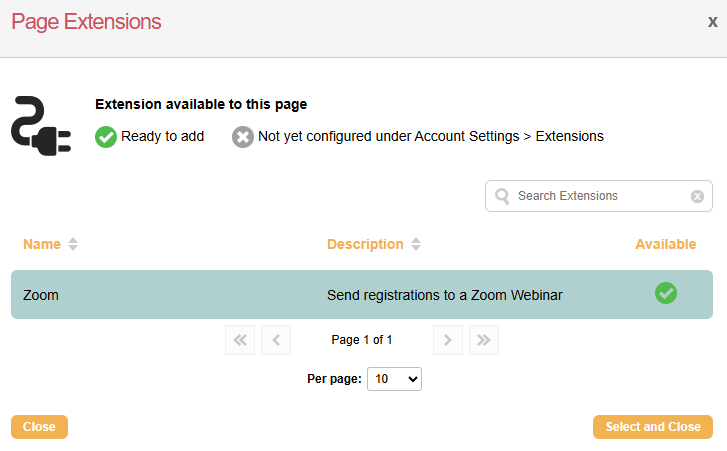
Select ‘Browse Extensions’
In the pop-up, select Zoom > ‘Select and Close’
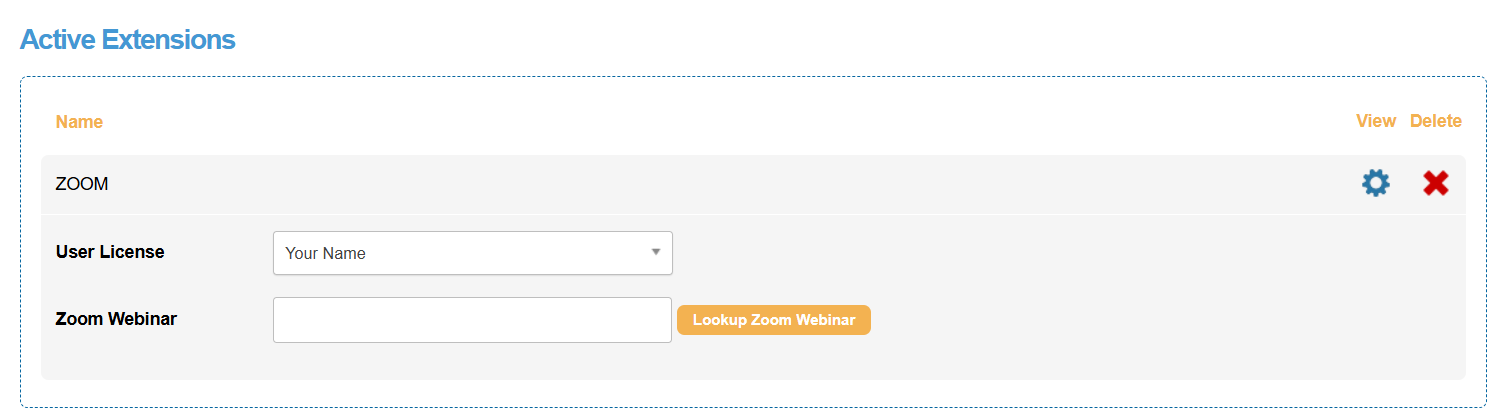
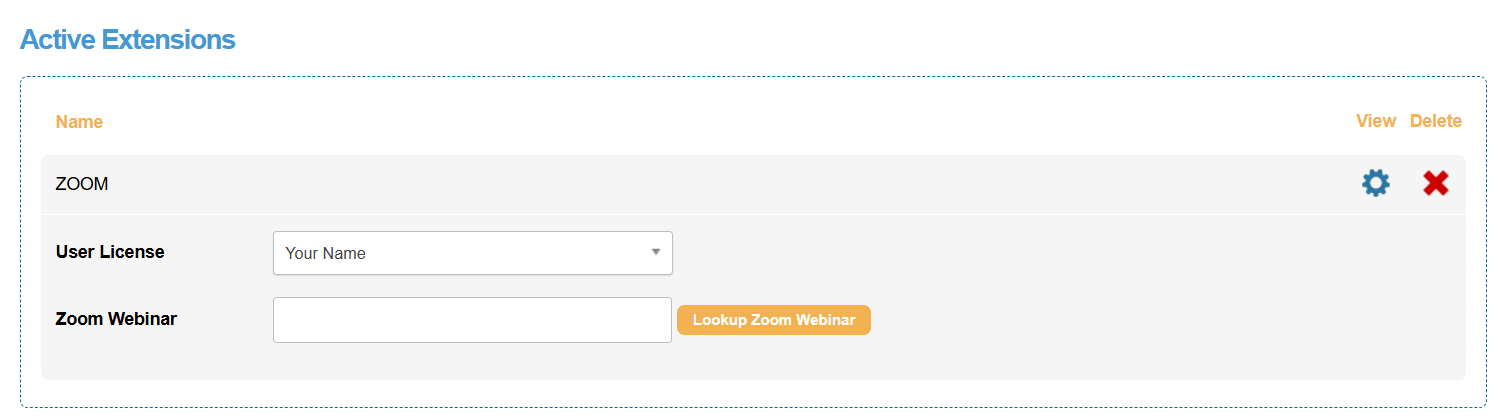
If successful, Zoom will show under Active extensions
In the Zoom extension:
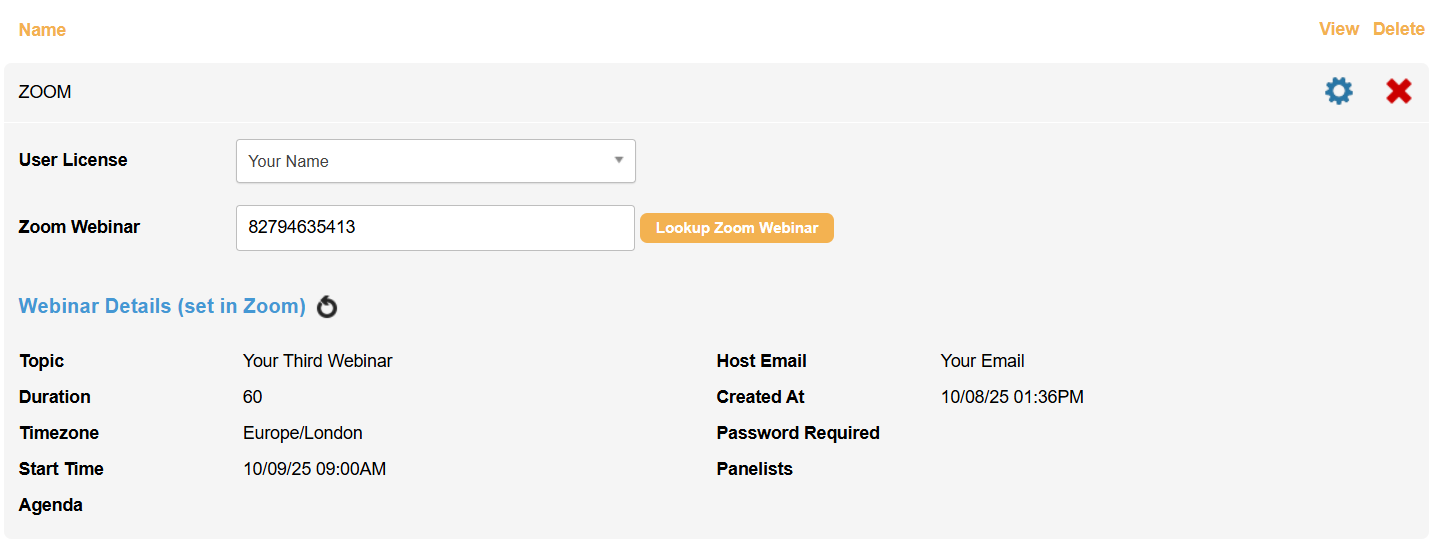
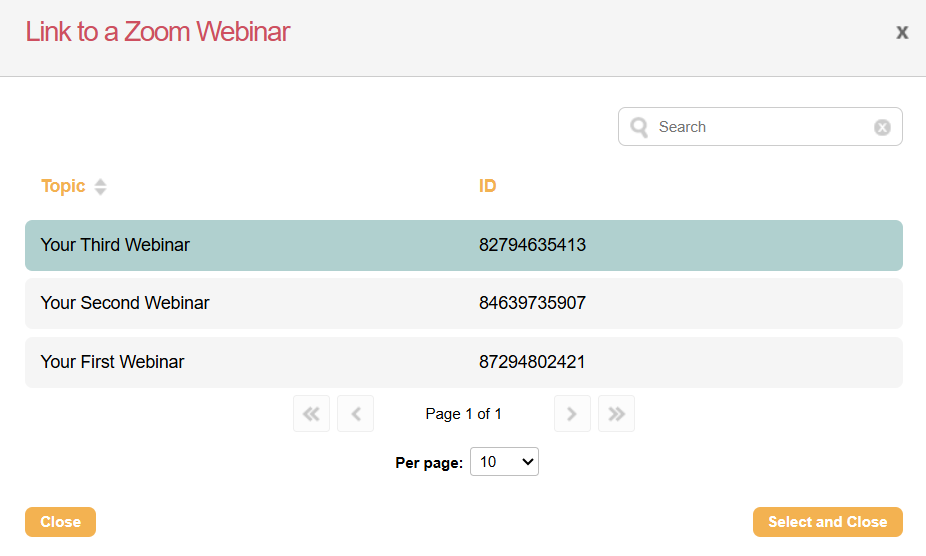
Select the relevant user name and Lookup Zoom Webinar
In the pop-up, select the relevant topic > 'Select and Close'
If connected successfully, the webinars will appear under the active extension.
For the Zoom integration to process:
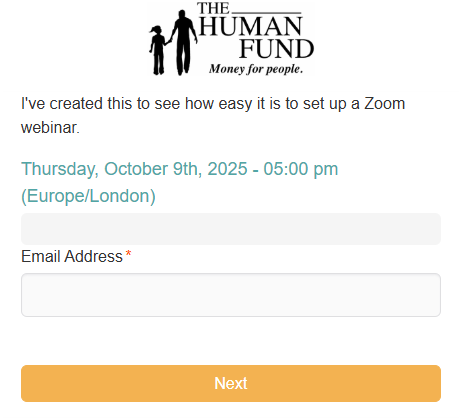
A form block containing the email address field must be on the page. This allows the page to process
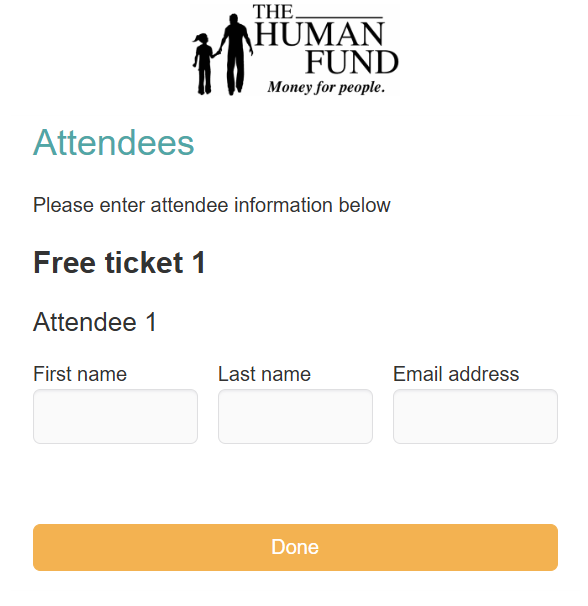
An attendee block containing the First Name, Last Name, and email address fields must be on the page. This is passed to Zoom, triggering the integration.
The page must be set to live, as the integration doesn’t trigger in test mode.
Reporting
Zoom will notify you whether the registrant attended the webinar, which will be reflected on your event page and also available for export as an additional ETA transaction row.
You can also confirm registrants in your Zoom account:
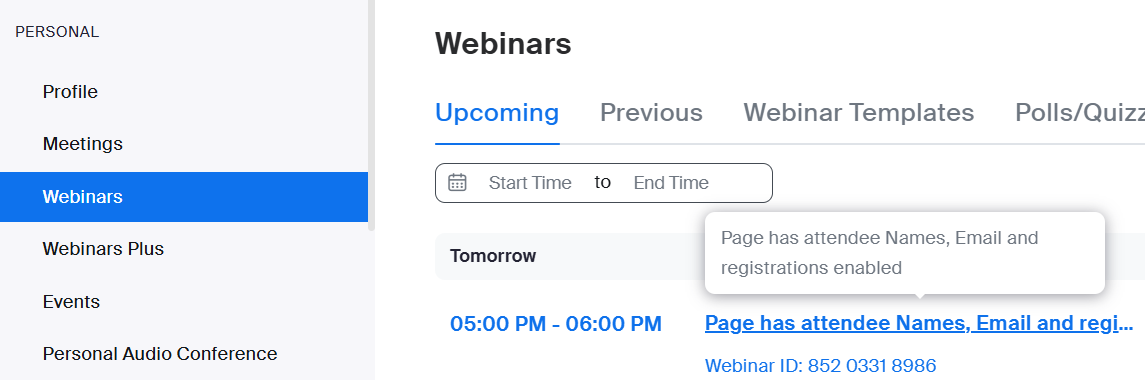
In Zoom, go to the webinar associated with your page and select it
In the webinar, select invitations
> Manage Attendees > Export List
Disconnecting Zoom Webinar
To fully disconnect Zoom webinars from your Engaging Networks account, you need to delete them from both platforms.
Each individually connected account should be removed separately. Once a linked account is deleted, the user's associated Webinar pages will no longer be available for syncing on an Event page.
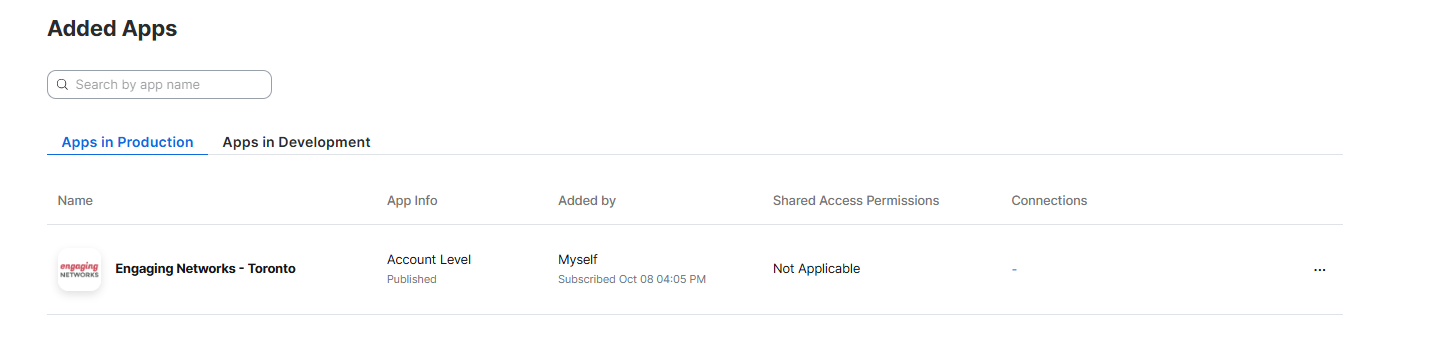
In your Engaging Networks account, go to Hello ‘Your Name’ > Account Settings > Extensions > Select Integrations > Zoom and delete the connected account.
JavaScript errors detected
Please note, these errors can depend on your browser setup.
If this problem persists, please contact our support.