Templates Overview
What is an email template?
Your email template determines the design and structure of your email broadcasts. When you create an email broadcast, it will always use a template, ensuring you get consistency across your email marketing.
How an email looks when it lands in a supporter’s inbox very much depends on how this template has been built and whether it adheres to best practice in email design. If you are a web designer, you will know the challenges of writing HTML for emails, and testing is paramount. We recommend using a service like Email on Acid, or Litmus to check that your template is rendering well across all the major email clients.
If you are concerned only with content creation, then you will find our marketing tools make email generation a simple and enjoyable task, particularly when accompanied by a rock solid template foundation. If you just want to practice creating content, why not use one of our sample templates and find out just how easy it is, but if you are keen to dig into the templating side of things, read on!
Want to get started quickly? Create from a sample
Engaging Networks provides sample templates to help you get started with the Marketing tools. They are branded with a fictional charity and are designed to allow you to easily change the logo, colors and fonts to make it match your own brand more closely.
Our new Free and Flexible email template replaces the CTA template and newsletter templates. You can use as many or as few of the sample blocks as required. They will work for appeal, engagement and fundraising emails.
The sample templates are unlike the more bespoke templates that an agency might create for you. An agency might ‘hard code’ the brand elements (so they cannot be changed), but with the sample templates, there are many changes you can make with the Global Replacements.
In the sample templates you can change:
-
Logo
-
Background colours
-
Headings and body text (fonts, sizes and colours)
-
Social channels
-
CTA buttons
-
Footer
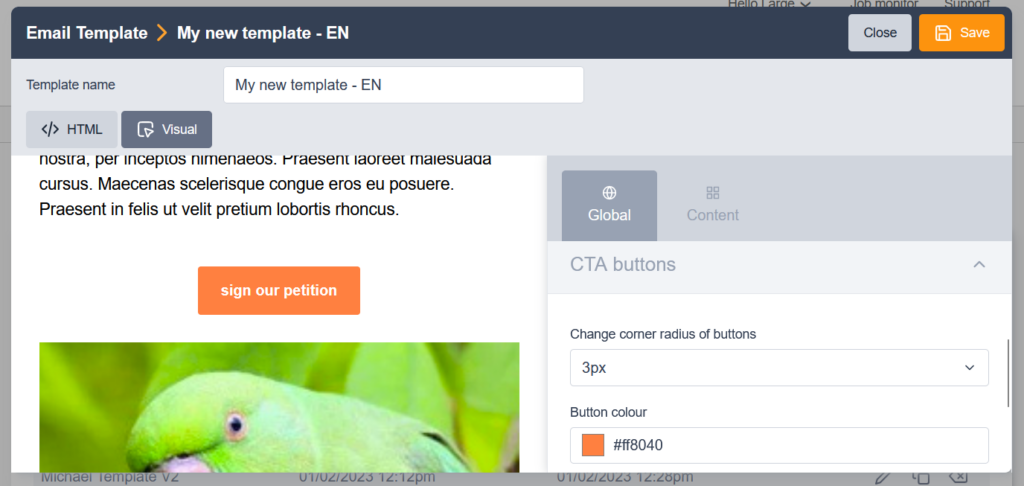
In the screengrab above you can see where you can change the button color and the corner radius.
The sample templates come preloaded with all the different Custom block types. We recommend leaving these on the template while updating the Global elements, as this will allow you to see your changes happening in real time.
When you are finished making the changes to your new template, hit ‘Save’ and it will now be available on your list of available templates.
Viewing and editing templates
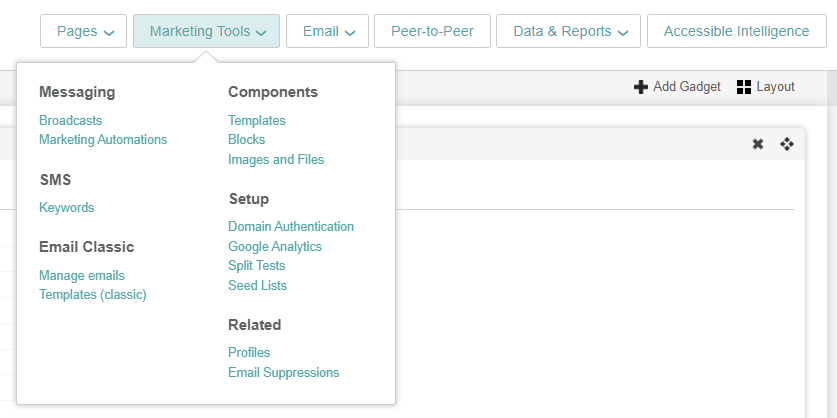
Go to Marketing tools > components > templates
You can view a list of your templates, with options to:
-
Duplicate
-
Edit
-
Delete
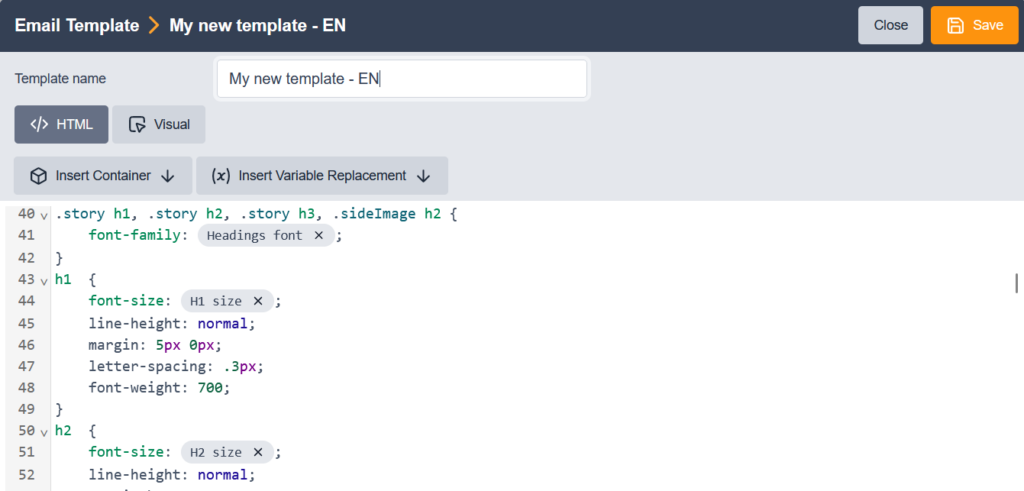
On initial load, you will see your template in HTML view. Among the HTML and CSS, you will see tags which will have been added by the template designer. These tags signify ‘Replacements’ and ‘Containers’.
Exporting and Importing Templates
You have the ability to export and import templates.
Marketing tools templates can be exported from into Engaging Networks as JSON files. The JSON can then subsequently be imported back into Engaging Networks to create templates or other systems.
Exporting a template
Navigate to Marketing Tools > Components > Templates and select the pencil icon for the template.
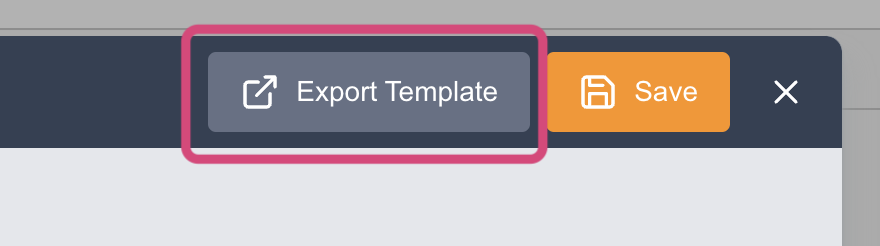
From the template screen, there will be an option on the top left to Export Template.
After selecting to export the template, there is an Export Options checkbox option to include custom blocks in the export. With the setting enabled any blocks currently in use in the template will be included in the exported JSON. Without the setting enabled, the file will include only global settings for the email template and the content container will be empty.

Selecting Export Template will produce a .json file of the template or the code can be copied directly from the overlay.
Importing Templates
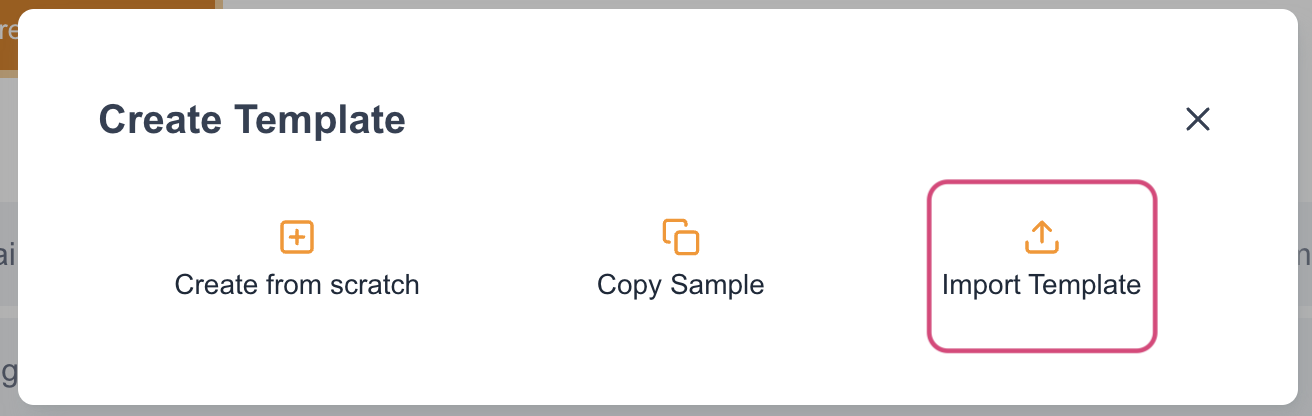
Under Marketing Tools > Templates you will select Create Template

and then choose Import Template:
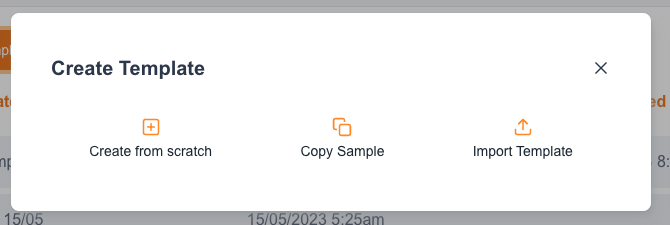
You can then choose the JSON file that you exported previously or paste the JSON that you copied from the template export process. Save and you’re ready to go!
Marketing tools templates can be exported from into Engaging Networks as JSON files. The JSON can then subsequently be imported back into Engaging Networks to create templates or other systems.
Importing a Template
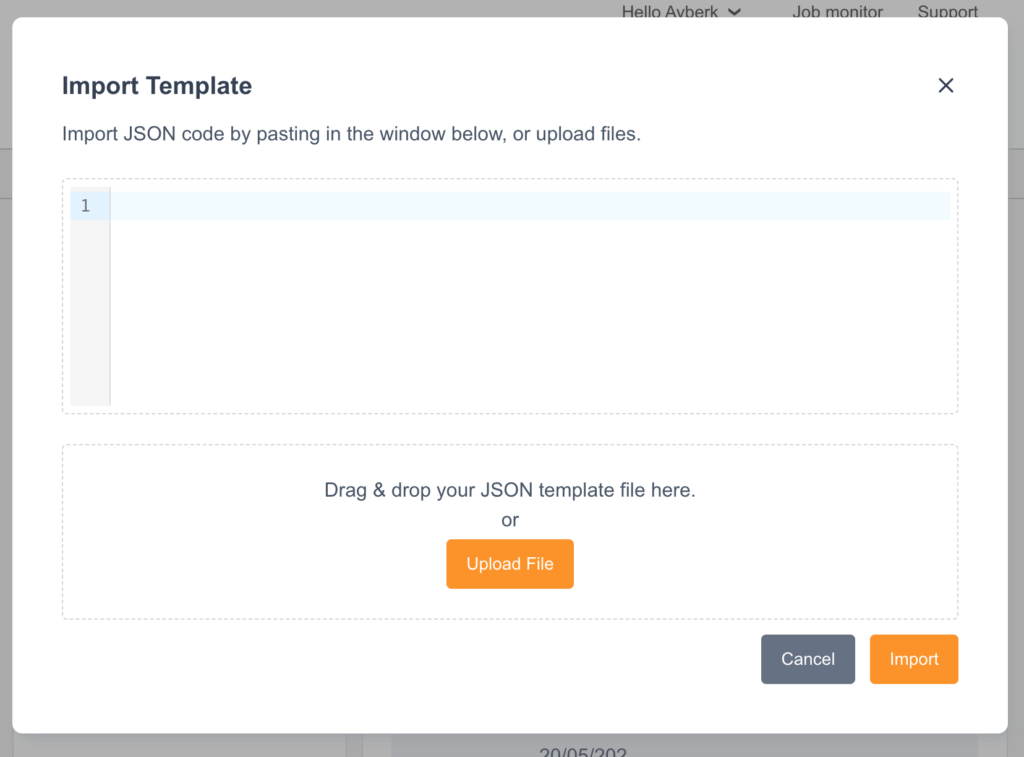
Navigate to Marketing Tools > Components > Templates. Select the orange Create Template button and then Import Template and configure a name for the template.
Once the template is named the JSON can be copy and pasted or selected as a local file to upload. After adding the JSON, select the orange Import button.
If the option to include custom blocks was enabled when exporting the template JSON, each block will need to be reviewed to indicate if it should be imported or skipped.
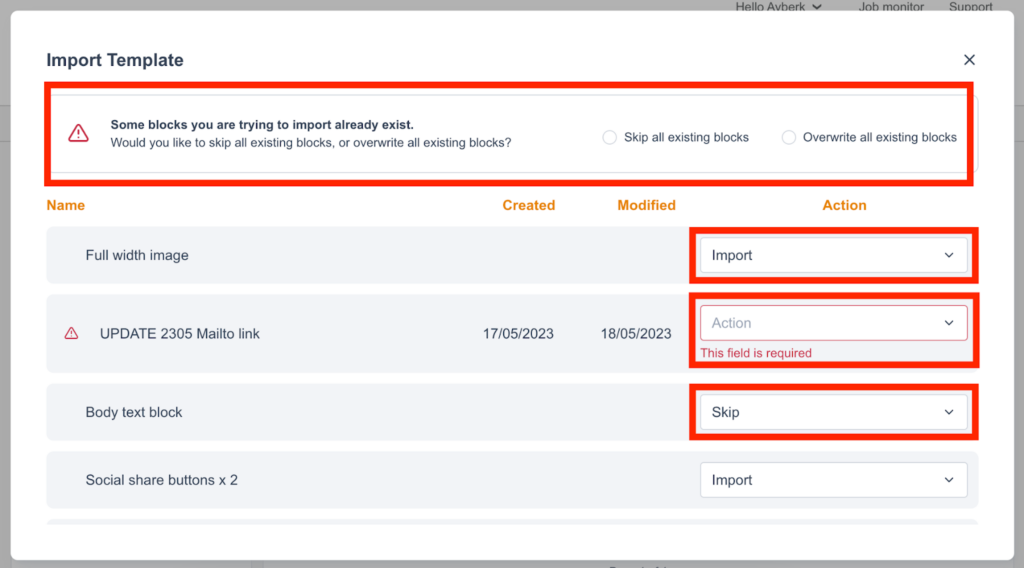
If some blocks being imported already exist, a warning message will display at the top which asks to skip all existing blocks, or overwrite all existing blocks. If you choose to skip all, those existing blocks will not be imported.
Alternatively individual actions can be configured for each block:
|
Import |
The block will be imported to the template and custom blocks will be saved to your account. |
|
Skip |
The block will not be imported to the template or account. |
|
Overwrite |
The existing block will be overwritten in exchange for the new one. This will replace the existing block and it will no longer be available. |
|
Create New Block |
If the name of the block being imported already exists, a new block can be created by changing the existing name. The block name will be editable once selecting this option. |
Using Your Imported Template
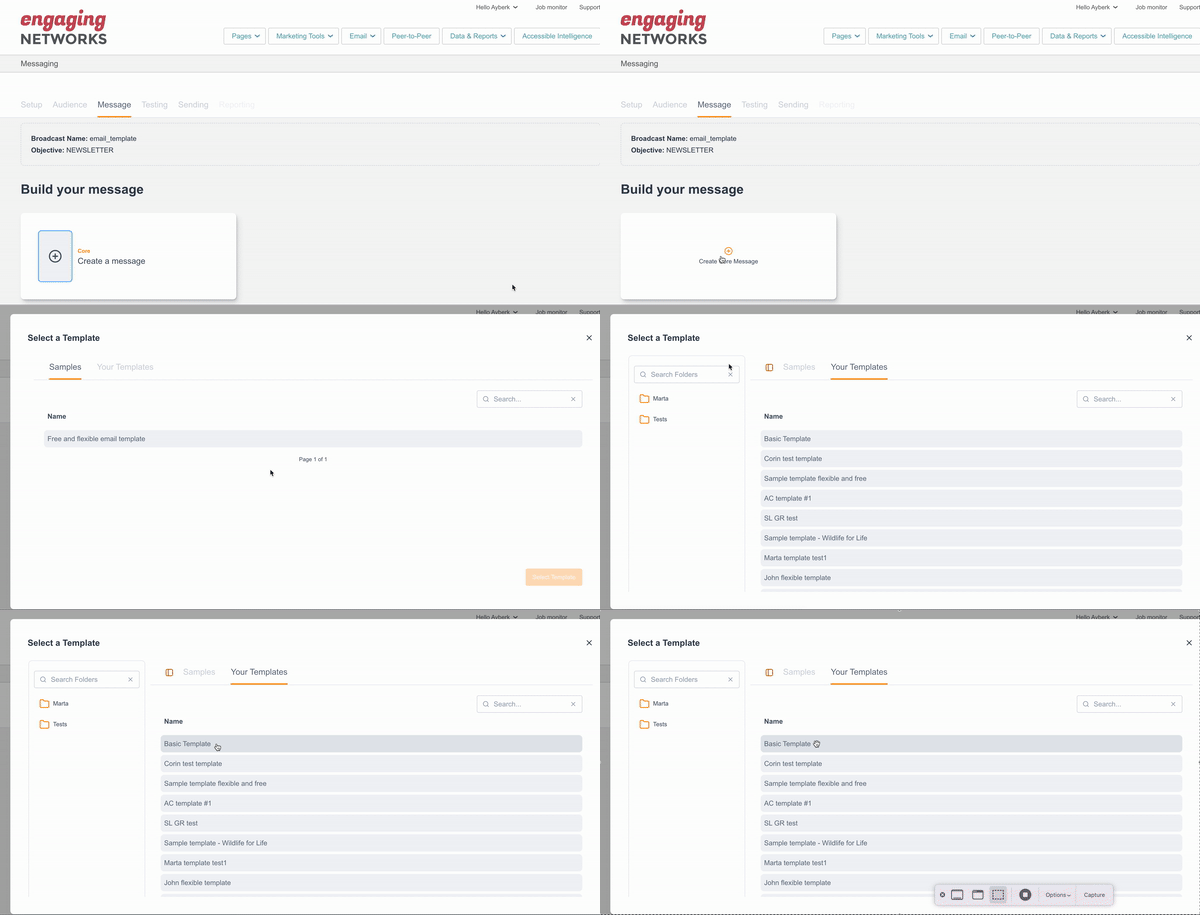
When creating new email Broadcasts, the newly created template will now be available under the Your Templates tab.
What is a replacement?
A template replacement is a placeholder which allows design elements to be changed in the visual editor. This could be anything from allowing the user to easily modify the colour of a CTA button using a colour picker replacement field type to a text replacement to update the size of the headings.
The different replacement field types currently available are:
-
Text
-
Rich text editor
-
Select
-
Link
-
Image
-
Image URL
-
Colour picker
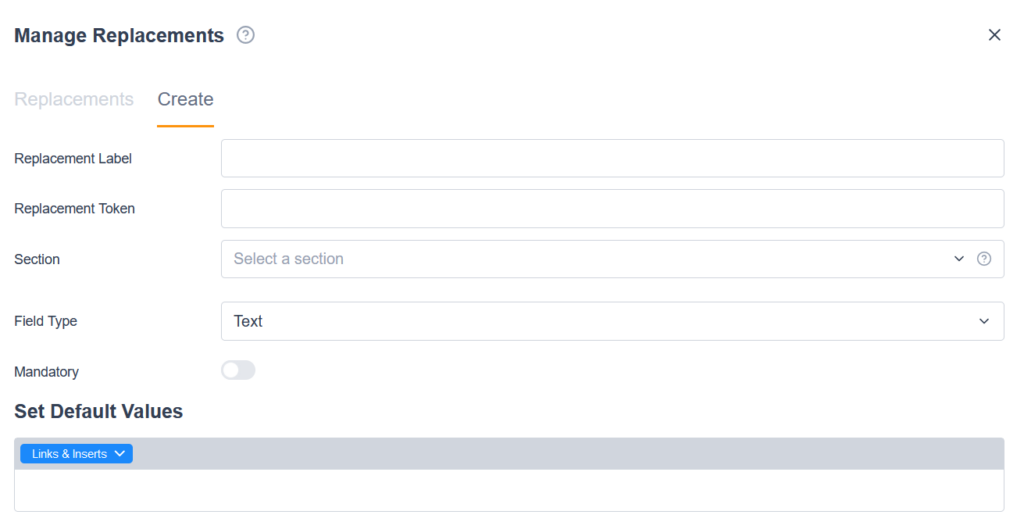
When you create a new replacement, you give it a label (should be descriptive), then the token is generated automatically. You give it a section, which allows you to group them (eg ‘Headings’ would be a good section name for your replacements that allow editing of H1, H2, H3 and H4), then you choose a Field type.
Replacements are a key component of the tools, and allow template designers to lock in the structure and design, and allow content creators to do what they do best (with no fiddly HTML to deal with!). When used on a template as mentioned above, they allow users to modify design and brand elements, but on Custom blocks they allow users to modify the content of broadcast emails.
What is a container?
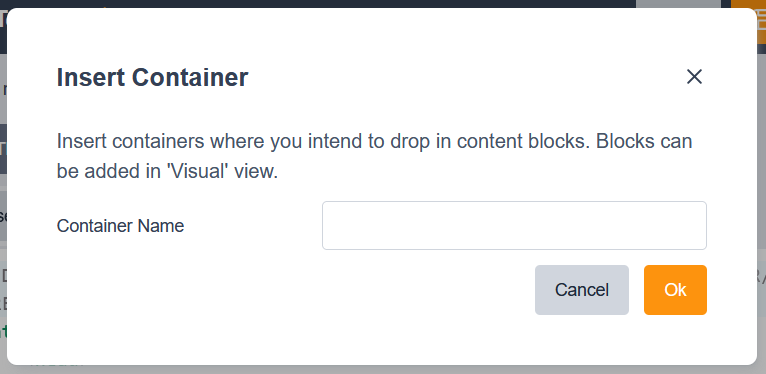
A container tag places an area on the template where custom blocks can be added to your email broadcasts. Think of it as a workspace for the content creator. Wherever a container is added the user will be able to add, remove and reorder the custom blocks. These custom blocks could be (and this depends on what custom blocks you or your designer creates):
-
CTA button
-
Body text area
-
Full width image
-
Two column news with images
-
Email sign off with staff photo
Visual view
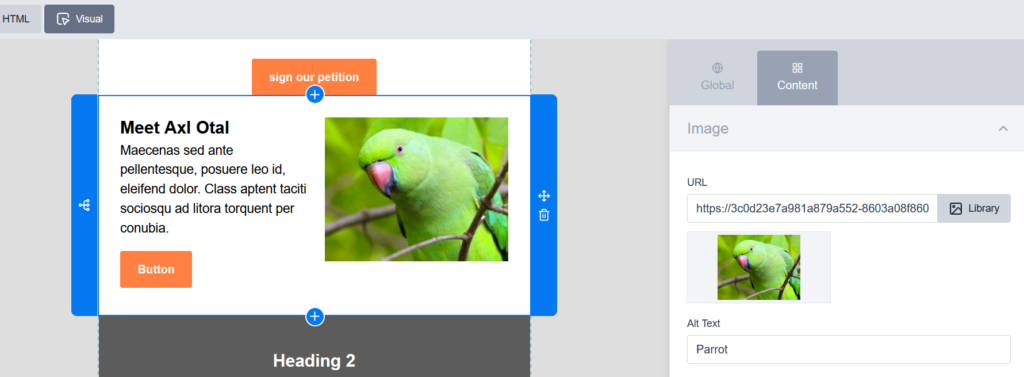
As well as viewing the template HTML, you can switch to Visual view. This allows you to see the HTML rendered as it will hopefully look when it lands in inboxes. If your template already has custom blocks loaded, you will see them within the container areas.
In this screengrab you can see a selected custom block and the editable areas to the right.
If the designer has not preloaded any custom blocks, and you hover over the main content areas (where the ‘containers’ were added), you will see a plus symbol allowing you to add in blocks from your library.
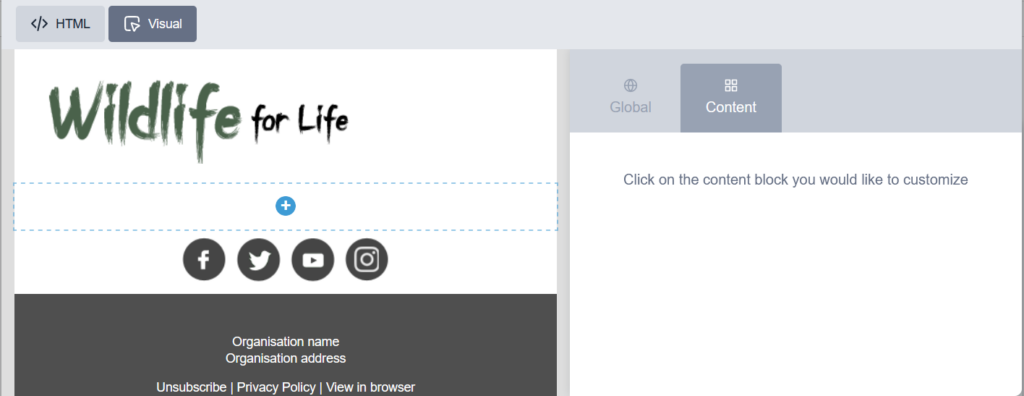
There is no need to load blocks onto the template, however some might do so to provide layout inspiration to the content creators when they create a broadcast email. You can either provide a blank canvas, or add in all possible blocks for the content creator to pick and choose what they wish for their broadcast.
On the right hand side you will see two tabs: Global and Content.
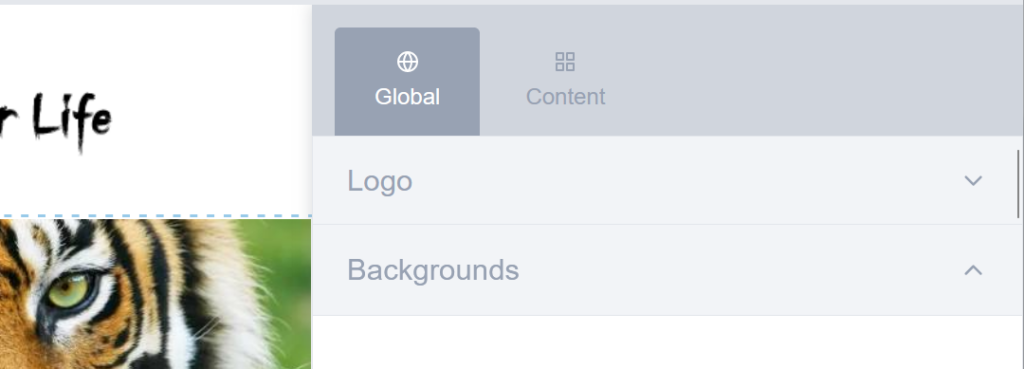
Global
This is where you can make edits to the templates from any of the replacements within the HTML. So for example if the template designer added a replacement to allow you to change CTA Button colour throughout the template, you would do it under Global. Or if you wanted to change the Logo, and the designer had added an Image type replacement for that, you would also do that here.
Content
This is where you can edit the content in any preloaded custom blocks. So for example, if you wanted to change the default holding text in a Rich text block, you would do it here.
If you change the content in the custom blocks within the template, it will update the content at the source. Within templates, custom blocks are a shared component. it is only when building a broadcast email that you can update content in a custom block without overwriting the original.
Editing templates
Understanding HTML structure and syntax is vital if you want to edit the code in your template. If you are comfortable with this, then it is simply a case of making the changes in the HTML, then clicking ‘Save’.
You cannot edit the HTML structure within the visual view. In visual view you will only be able to edit those parts that have replacements attributed to them.
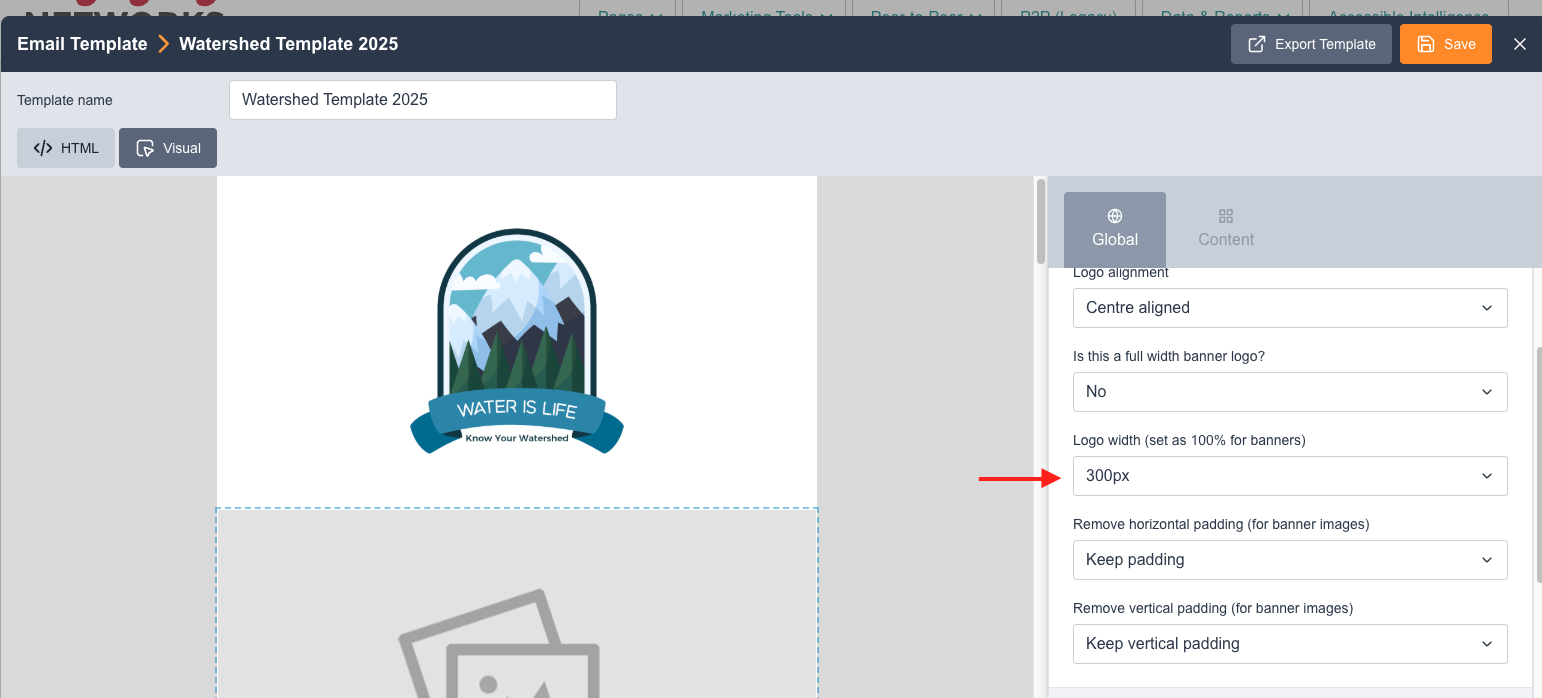
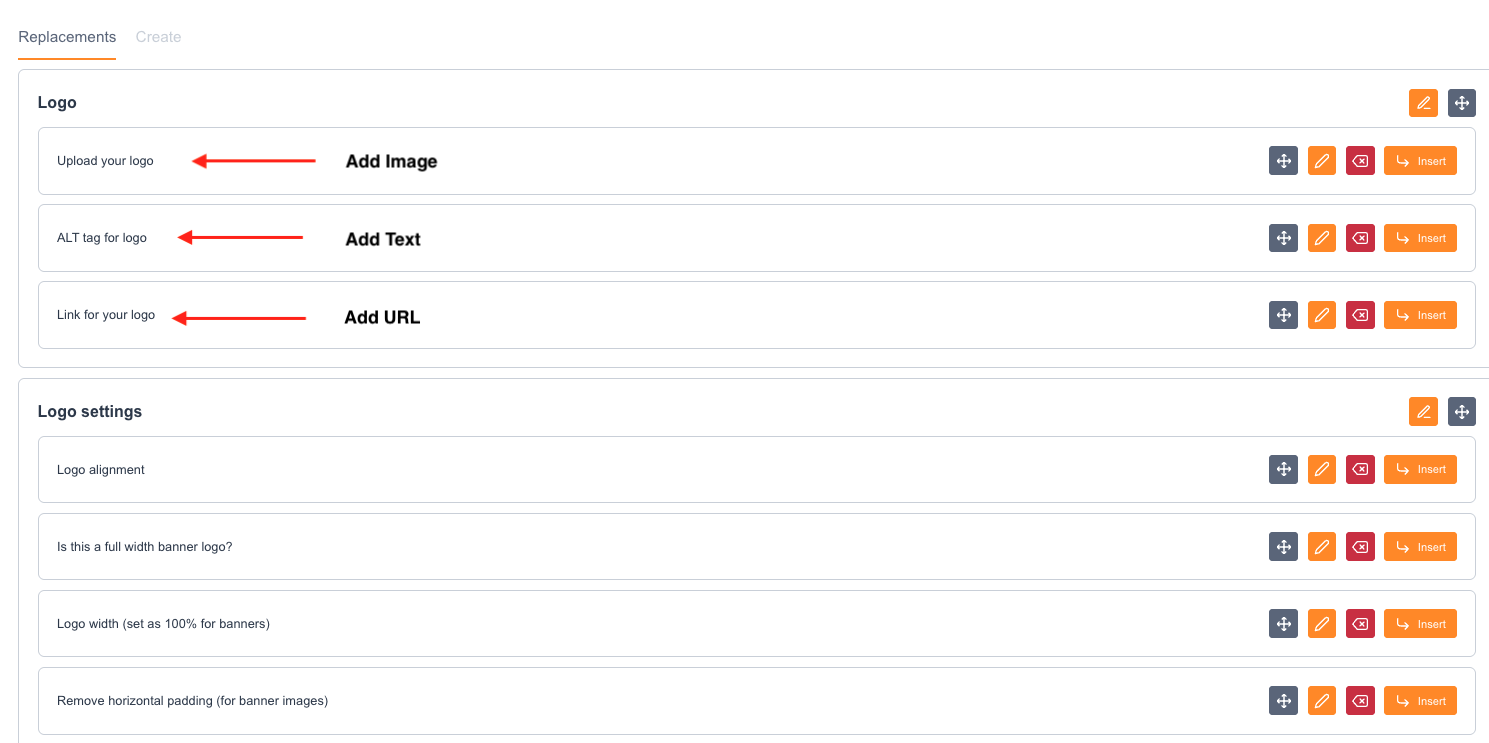
If your designer created a replacement to allow you to change the logo, then you would do that under the Global tab. In the screengrab below from our sample template, you can see that the logo can be changed, as well as the positioning of it.
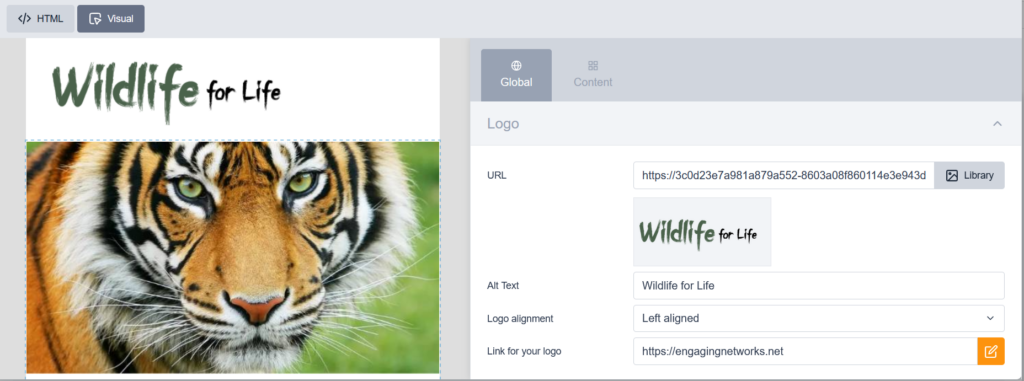
Once you have made any changes in visual view, just click ‘Save’.
As with anything in life, always have a back up plan, so we recommend you create a duplicate, then work from this. That means you always have a fallback, should things go badly wrong!
Creating a template from scratch
Create template > Create from scratch
Every designer/developer will have their own way of working, but we would recommend that your HTML is built locally, then pasted into the HTML window when it is ready.
Think of the structure of a template in a modular way:
-
HTML
-
Container
-
Custom blocks
-
Replacements
-
-
-
If creating a template where the end user can also modify elements of the brand, it would be like this:
-
HTML
-
Replacements (Global)
-
Container
-
Custom blocks
-
Replacements (custom block level)
-
-
-
-
-
The custom blocks are made up of HTML and Replacement tags. The replacements are the areas to be edited by the user when creating their email broadcasts.
If you have experience building templates with our legacy email tools, it might be helpful to think of the custom blocks as the new version of the ‘Editable Repeatable Region’. But with benefits.
Learn more about creating custom blocks here.
If you build your email in an entirety (locally) and add comments in your HTML above and below all the distinct pieces of code that will make up each custom block it is then easy to transfer each element across to create your blocks.
So to summarise, your code will exist in different places in our Marketing tools. Your template (the top and tail) will be saved in ‘Templates’ and your custom blocks will be saved to ‘Custom blocks’.
Currently it is not possible to see all of your HTML in place, for example if you wanted to copy and paste all your code to put it in another client account. It is therefore important that you keep your local copy of all your HTML and CSS locally.
Copying A Broadcast Email Template to an Email Marketing Automation
It is possible to transfer a broadcast email template to an EMA (Email Marketing Automation) template with a bit of manual copy and pasting. There is a caveat that this process does not move across any tracking links and you will need to add links within the EMA itself to ensure your clicks are tracked.
Copying the marketing tools email template HTML
-
Go to Marketing Tools > Broadcasts > Create Broadcast
-
Create a message using the template you’d like to copy into an automation and save it
-
Navigate to the Testing tab for the broadcast campaign
-
Select the 🔍 to preview the template in your browser
-
In the browser preview, right click and ‘view source’ to see the HTML
-
Copy the HTML
Pasting the HTML into Marketing Automation templates
-
Go to Marketing Tools > Marketing Automations
-
Edit or create a marketing automation journey
-
Add or edit an email in the automation journey
-
Select the Load from Library button
-
Select the New Template button
-
Select the Advanced HTML editor tab and paste in the HTML
-
Name the template and select Save
How to add variable replacements to your template
In this article you will learn how to create dynamic templates using variable replacements
Once you have your base template ready to go, you may also want to include additional quick modification options in your email that will allow you to do things such as easily adjust image sizes or select from an option of branded colors.
To do this, you will need to insert Variable Replacements inside your template.
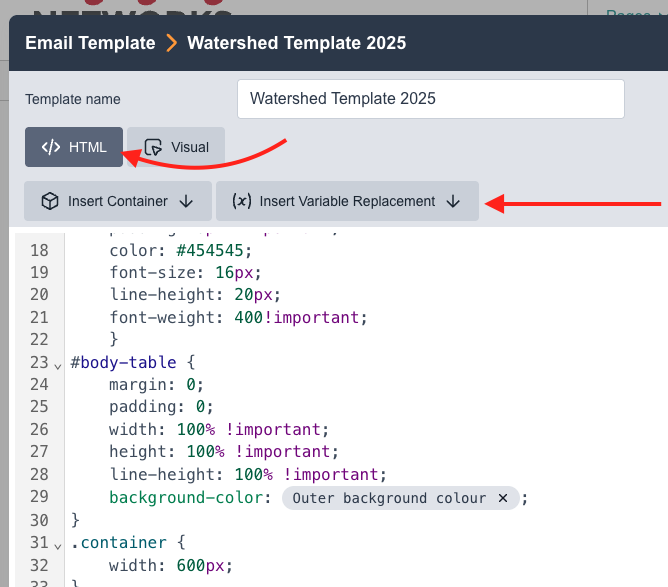
For instance, if your email template has variables for the logo section, you will be able to modify the logo without any further coding skills after you add your variables in the HTML template.
Variables can be added from the email templates’ HTML section.
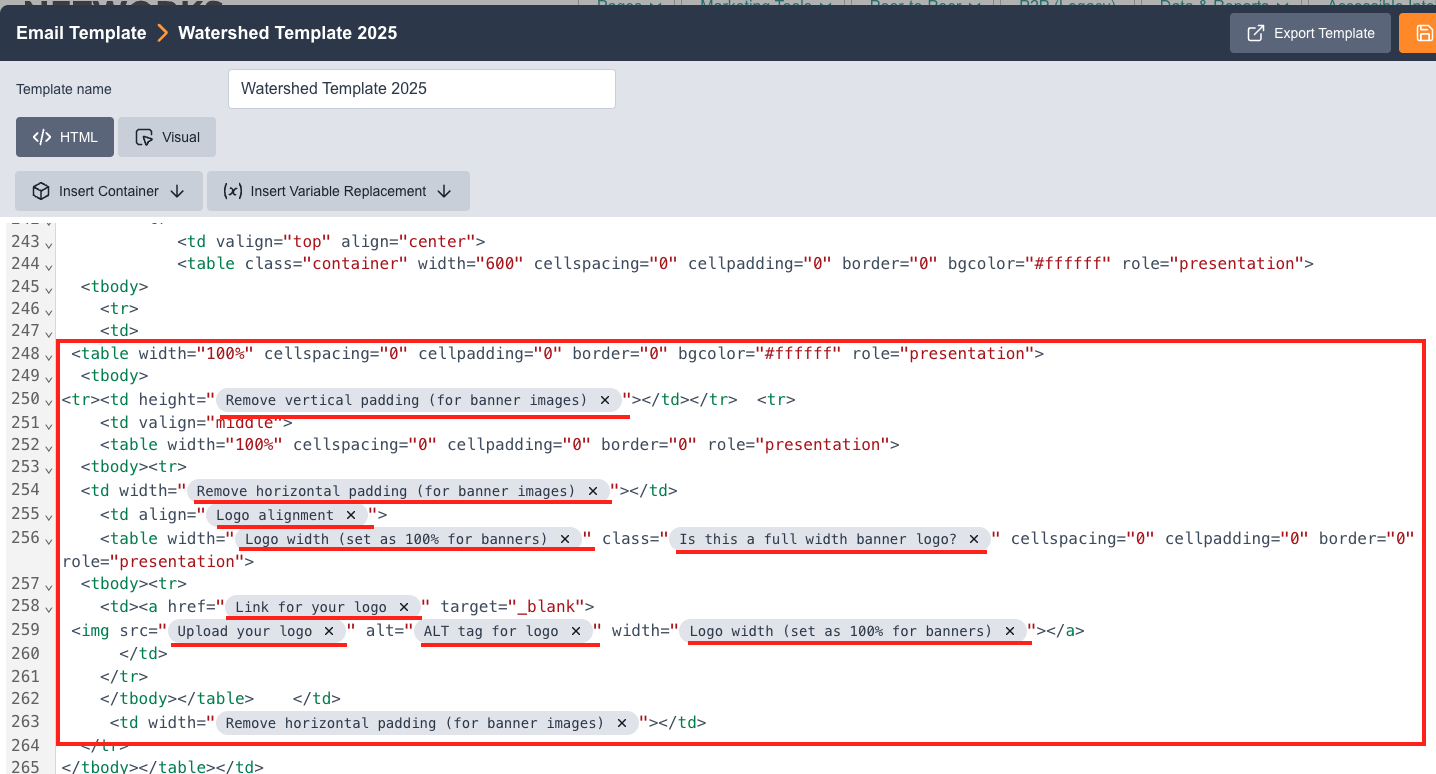
You can create many different kinds of variable replacements depending on your needs. The field types below are available to insert as variables:
-
Color Picker
-
Image
-
Image URL
-
Link
-
Rich Text Editor
-
Select
-
Text
Example
If you want to add image width size variables for your logo inside your template, you can insert a select variable replacing the size specs written inside your code, so users can select predefined image sizes for their logo.
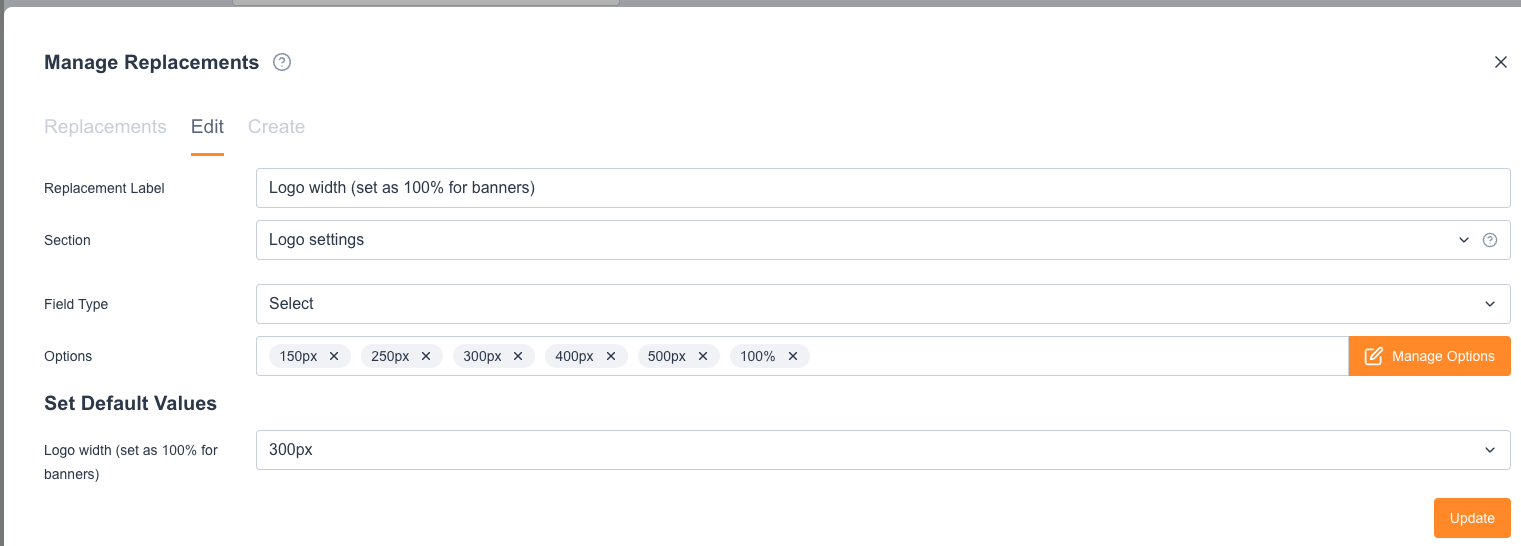
When you insert a Variable Replacement for your logo width, you will see a select box displaying the values you defined. In this template, there are several widths that have been defined and are available for selection when building the email: 150px, 250px, 300px, etc. Users will not need any HTML or CSS to adjust the settings in the Email as they will see the options in the Global settings tab: