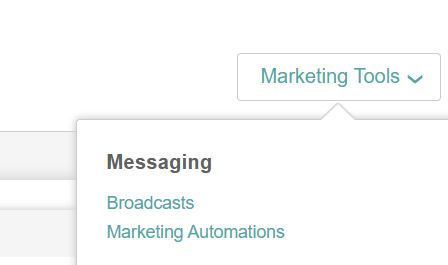
Marketing Tools > Broadcasts: Engaging Networks' integrated email marketing tool. Is designed to work in conjunction with your pages, allowing you to create seamless supporter journeys for your audience. It has a user interface designed to make setting up and sending your emails as simple and intuitive as possible.
If you are not currently using Marketing Tools and would like to discuss licensing, please contact your Account Success Manager.
Access Marketing Tools > Broadcast:
|
|
Marketing Tools - Broadcasts
A messaging broadcast using Marketing Tools is a campaign to an audience of your choosing. It can be an Email, an SMS, or a combination of both. This guide will take you through the intuitive steps to set up and send a Marketing Tools Broadcast.
Advanced use of Marketing Tools
Marketing tools offer advanced user functionality to provide audience-specific content and to test messaging.
Managing the Marketing Tools menu
Once you’ve navigated to broadcasts, you'll see the marketing tools menu. The following explains how to navigate the menu.
Navigating the Marketing Tools menu
|
To create a broadcast, select:
|
|
|
|
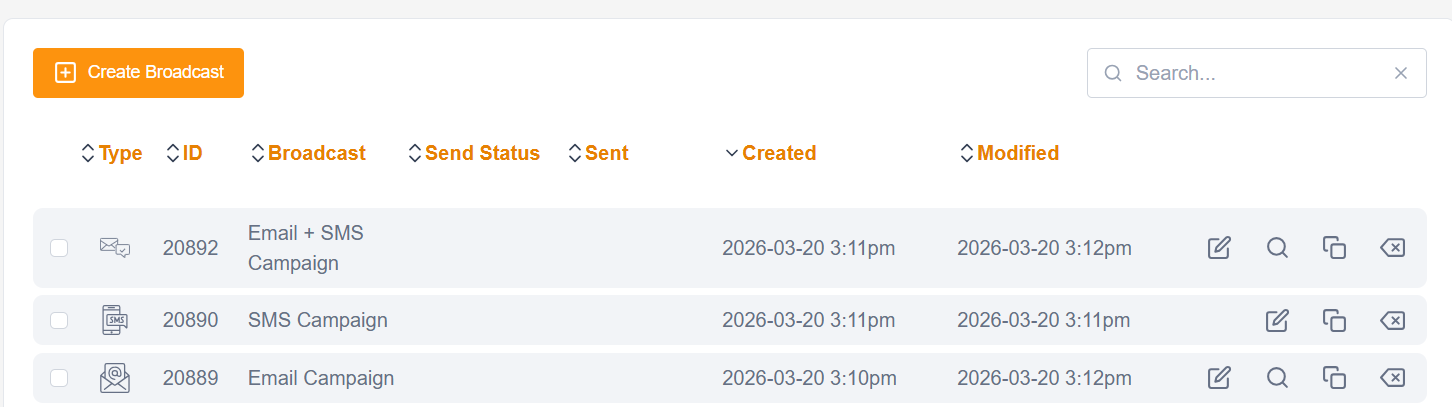
Type: Email-only is standard; if you have enabled the Twilio integration, you can create three distinct campaign types, identifiable in the menu by their icons. ID: Unique ID for the broadcast campaign Broadcast: The name you have given to the Broadcast Name |
|
|
|
Send Status: There are three different statuses a campaign can be in:
Sent: The date and time the broadcast campaign was sent Created: The date the broadcast campaign was created Modified: The date the broadcast was last modified Broadcast Menu Functions: The following functions are available on the
|
||



Managing Folders in Marketing Tools
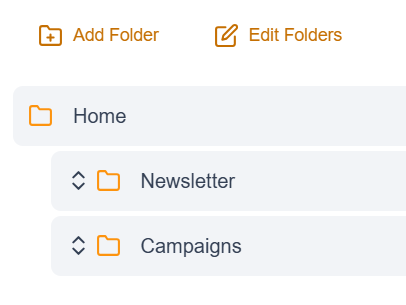
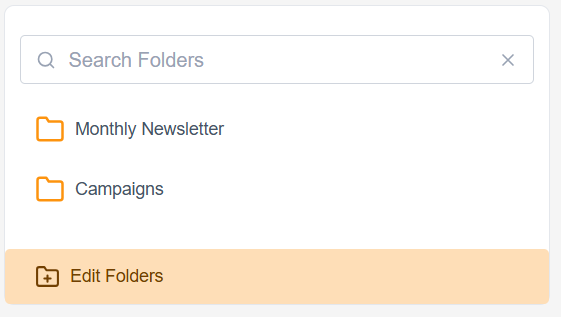
Once you navigate to your Marketing Tools and select either Broadcast, Templates, or Blocks, you will see a section where you can search, create and navigate folders and subfolders.
Managing Folders in Marketing Tools
|
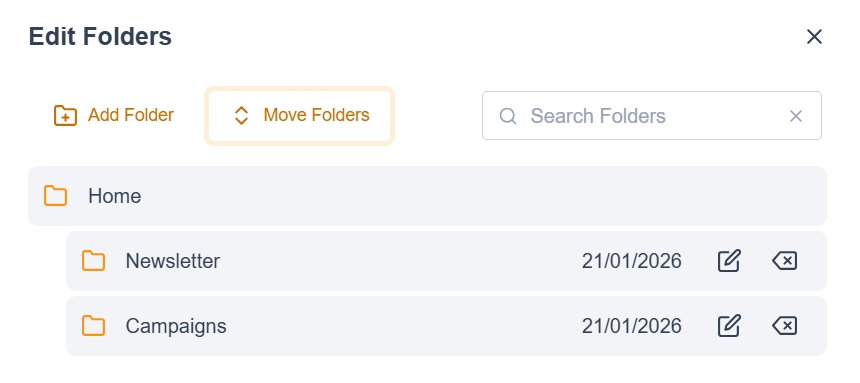
If you need to add or change any folders, click on Edit Folders: |
|
||
|
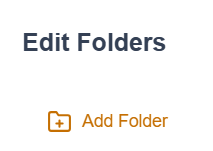
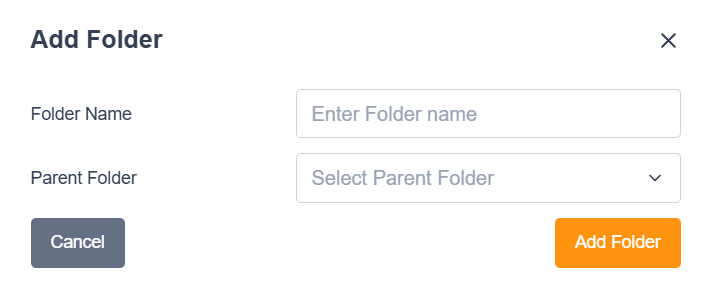
Add Folders:
|
|
||
|
Move Edit or Delete Folders: Select edit folders and choose:
When deleting, if a file or subfolder is present, the system won’t allow you to delete unless the folder is empty.
|
|