
Supporter participation in your campaigns is likely to be higher if their details are pre-populated in the form fields.
As long as the supporter has the relevant data fields populated in their supporter record, there are several ways to achieve the pre-population of your page forms when using Engaging Networks:
|
Marketing Tools |
When emailing your supporter using broadcasts or automations, it’s possible to pre-populate form fields using: ‘links & inserts |
|---|---|
|
Chaining Pages |
Page chaining links two Engaging Networks pages together. It can be accomplished by using either the ‘Insert Campaign Link’ |
|
External Links to Engaging Networks |
It’s possible to populate the fields using tools other than Engaging Networks. To achieve this, you will need to construct a URL using the relevant Engaging Networks page parameter. |



Broadcast emails
When sending emails using Engaging Networks, pre-population will
-
Only work the first time a campaign link is clicked from the email (for security reasons), and not with subsequent attempts
-
Not work when testing via Email Classic.
Custom URL parameters
You can add custom URL parameters to your campaign links using Marketing Tools - Broadcasts and page builder, and when linking to Engaging Networks from third-party tools and sites. These parameters can be used to pre-populate additional data, such as the donation amount.
We do not recommend including personally identifiable information or sensitive data in a URL, as this could expose data through a browser or analytics software such as Google Analytics.
Constructing a URL to pre-populate fields
To pre-populate your Engaging Networks page without using campaign links, you need to construct a URL which contains the names and values of the fields you want to pre-populate.
Example of adding an appeal code parameter to your URL:
|
|
|
|
|
i. Add the name and value into the query string starting with URLs are encoded, so spaces translate as %20.
|
|
Example of adding a transaction amount to the Appeal Code URL:
|
|
|
i. Add the name and value into the query string starting with |
|
URL Parameters for tagged fields
URL parameters for tagged fields —those fields associated with your account data structure —never change. Please note that these URL parameters are case sensitive.
How to find other URL parameters
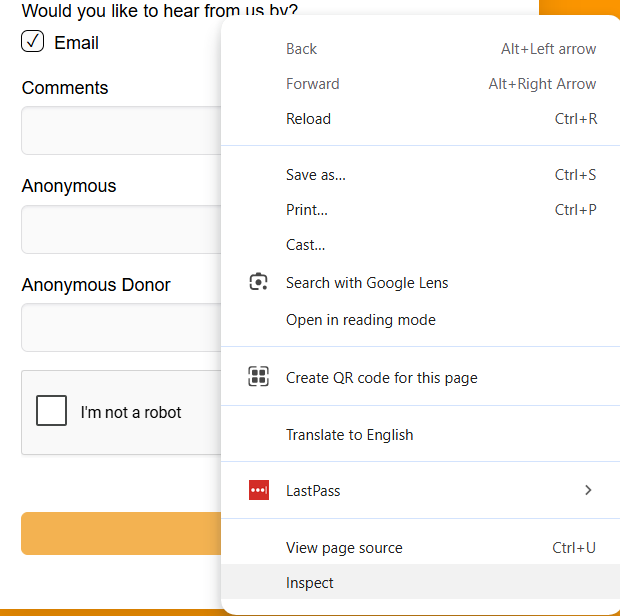
To find out the name of a field, it is best to look at the HTML of the page in your browser:
|
|
|

|
|
i. In this example |

|
|
ii. As this is an opt-in question*, it would be added into the query string with either a Y or N value. This could be the query string starting with It’s not recommended to use an opt-in question as URL parameters |
|