
To improve security of your Engaging Networks accounts, Super Admins can enable two factor authentication (2FA). In addition to requiring a password, Users will also need to install an authenticator app on their mobile device, which will generate a random number to create the second factor of authentication.
The interface references the Google Authenticator app but all authenticator apps are supported and can be used for 2fA
Enabling Two Factor Authentication
Two factor authentication can be enabled for all Users or can be set on an individual User level.
All Users
To enable 2FA for all Users, a Super Admin can go to Hello > Account settings > Users > select Manage 2FA.
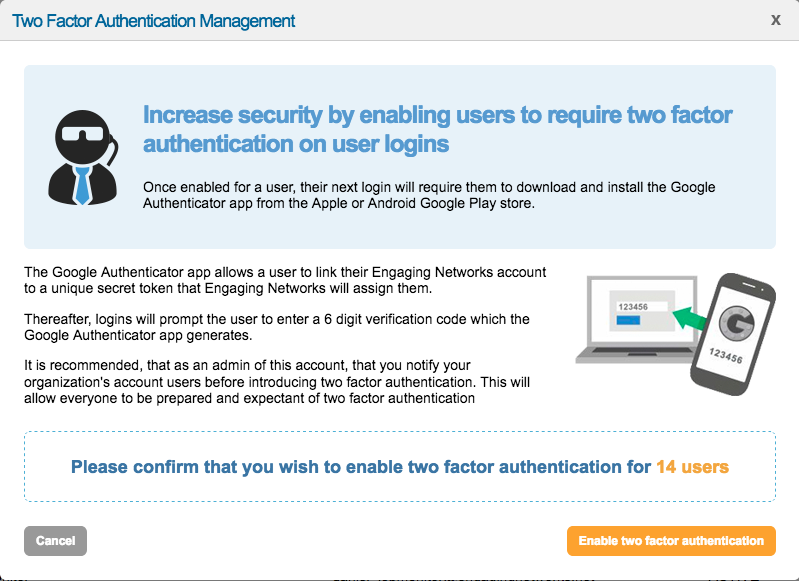
If you choose to Enable two factor authentication, all your Users will be required to use an authenticator app to complete logins to their Engaging Networks accounts.
Individual Users
If you only require certain Users to use two factor authentication, a Super Admin can enable the functionality on a per User basis. This can be done from Hello > Account settings > Users > Click to expand User > check Enable two factor authentication box (next to Security).

User Requirements and Flow
The interface references the Google Authenticator app but all authenticator apps are supported and can be used for 2FA
After 2fA has been enabled, Users will see a screen instructing them to set up two factor authentication along with basic instructions for how to do it.
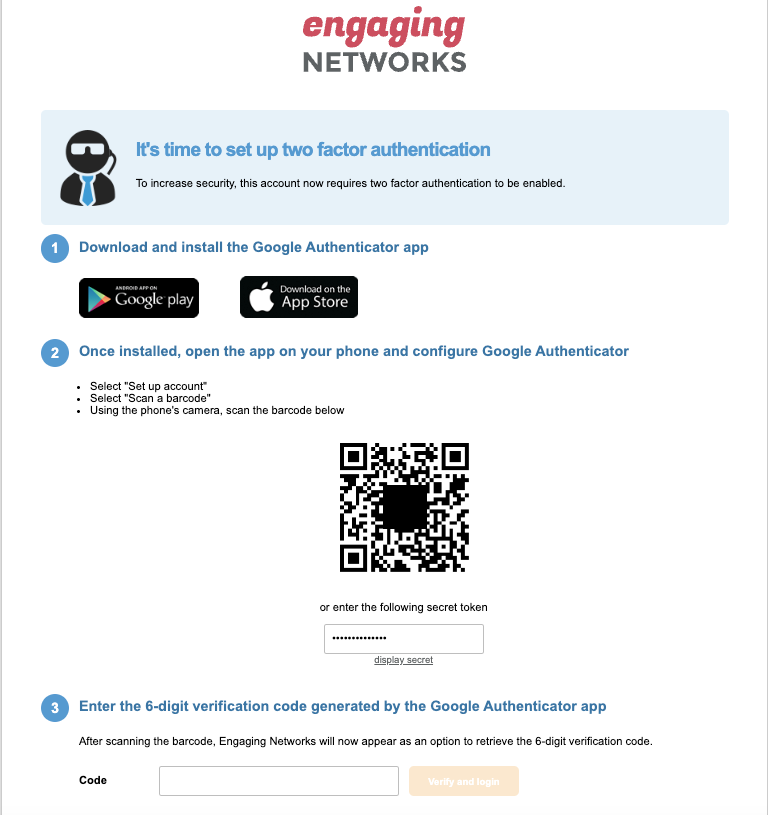
To continue with the login process, Users need to an authenticator app onto their mobile device and either scan the on-screen QR code with the authenticator app, or manually type in the secret code. After configuring the app, a six digit code will display inside the app (updates every 15 seconds) that will need to be entered to proceed with accessing Engaging Networks.
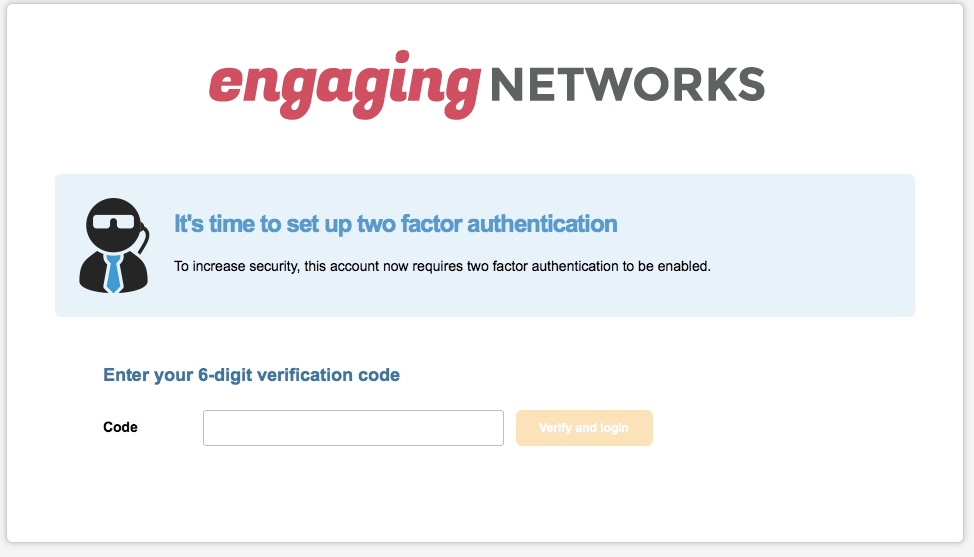
To ensure the continued security of our platform, Users with 2FA enabled are required to enter a two-factor authentication (2FA) code on every login attempt.
Troubleshooting 2FA
|
Reset the 2FA secret token:
|

|
|
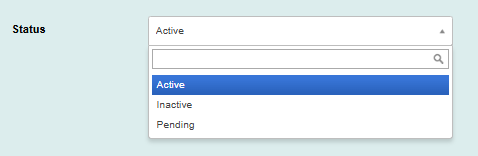
Changing User Status:
|
|