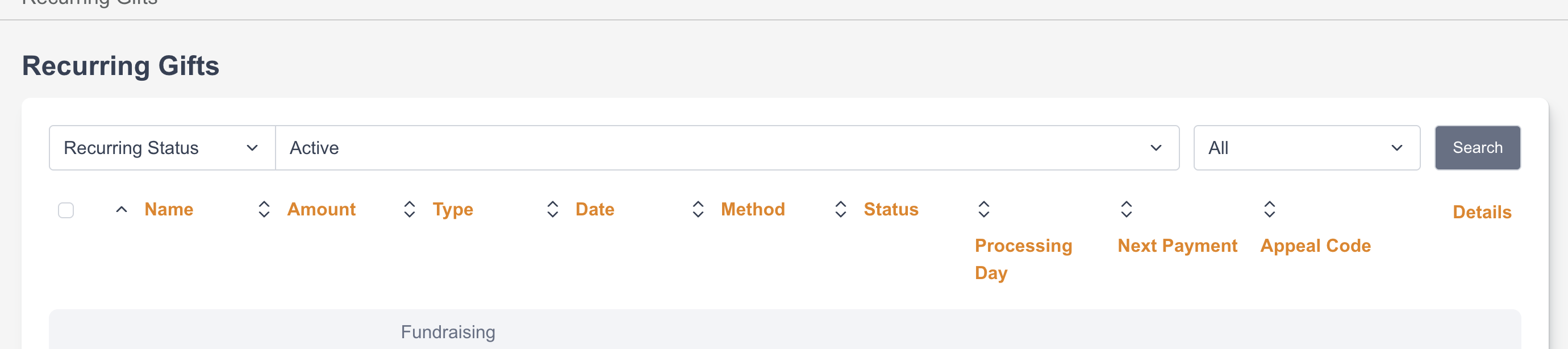
Recurring Gifts allows Users to search for specific recurring transactions in the Engaging Networks dashboard, quickly navigate into them and also bulk manage them. Users can search by various criteria related to the supporter or transactions and quickly navigate to the transaction to view or perform actions such as refund, update the amount, or cancel.
How to search Recurring Gifts
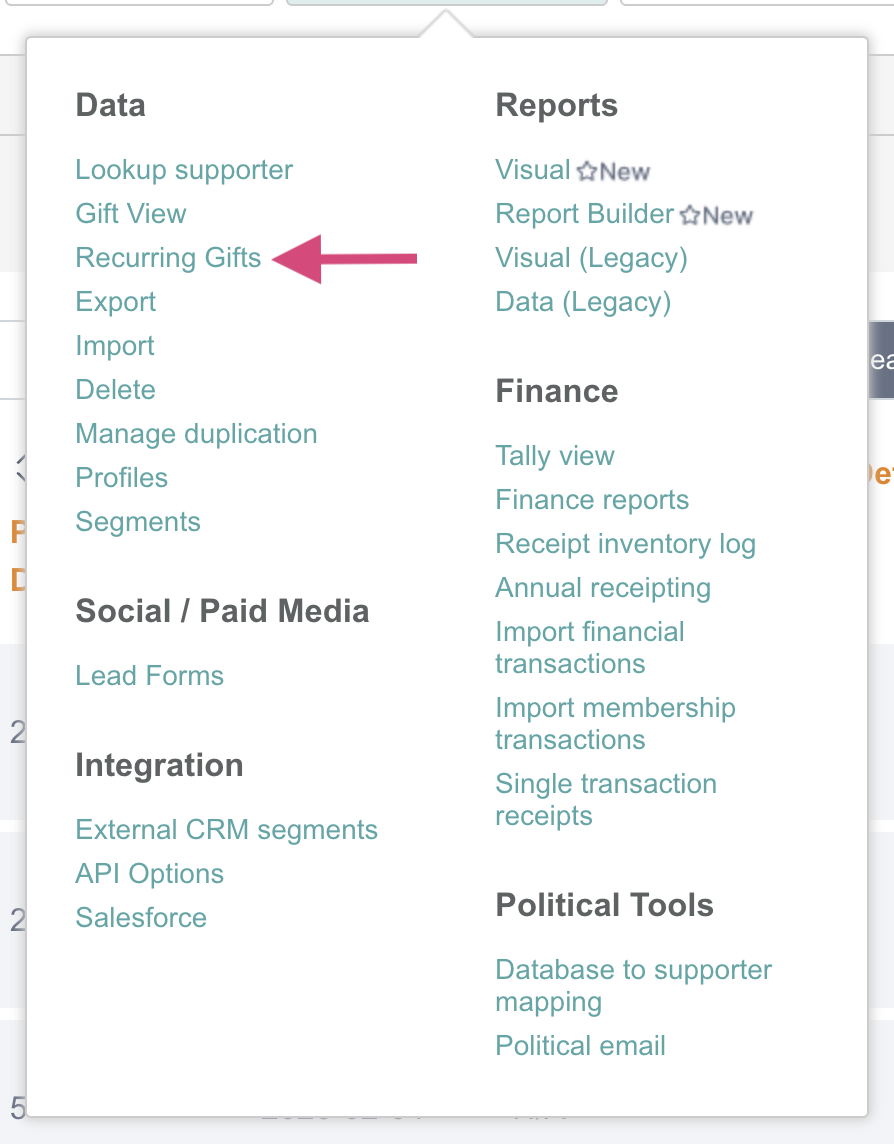
Gift View can be accessed by Users from Data & Reports > Recurring Gifts.
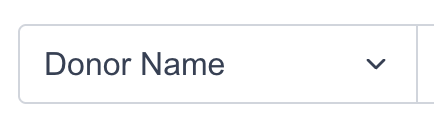
Select search criteria from the dropdown on the left
Field
Definition
Donor Name
Name of the supporter. A partial first or last name can also be used to search.
Donor Email
Email address of the supporter
Donor Mobile
Mobile phone number of the supporter (tagged Second Phone field)
Transaction ID
Gateway transaction ID. Partial ID can also be used to search
Last four digits of CC
The last four digits of the credit card used for the transaction
Processing day
Day the recurring transaction is processed
Recurring Status
ActiveSuspendedPausedCanceled
Appeal Code
Value for the tagged Appeal Code field associated with the recurring transaction/s
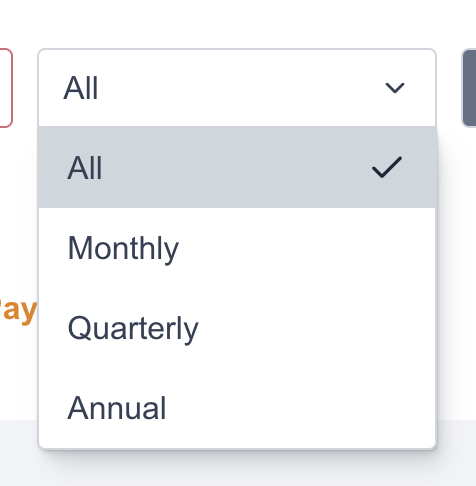
Optionally filter further by recurring frequency
Enter relevant search terms and select
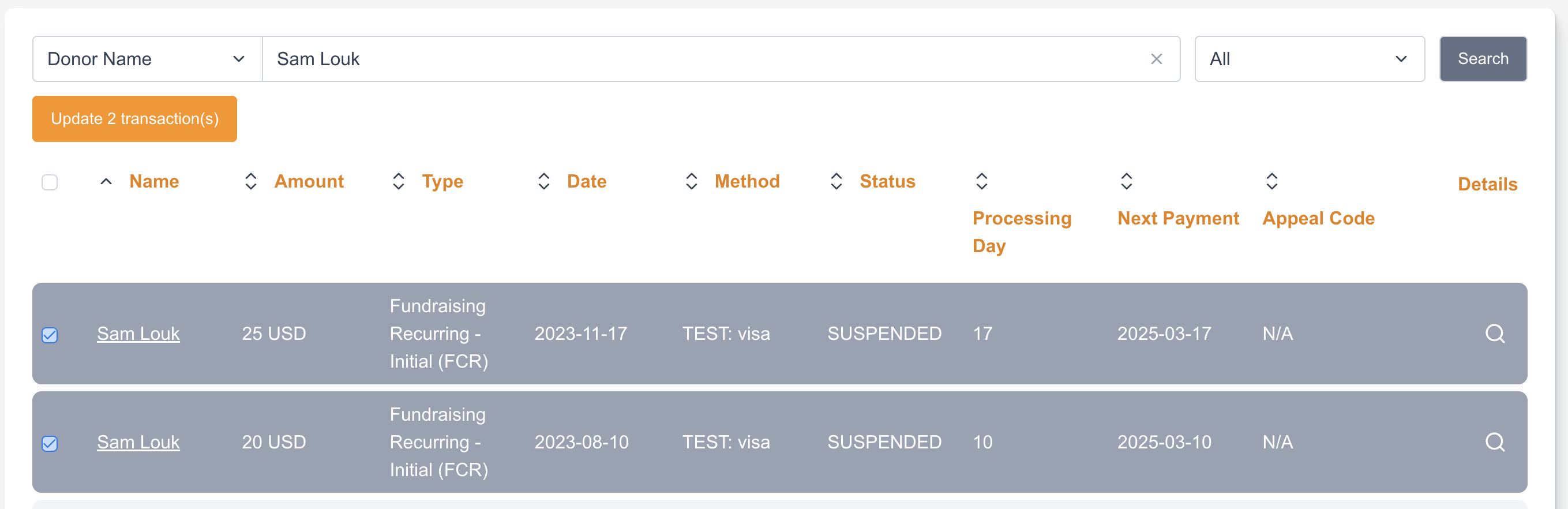
Review search results
Field
Definition
Name
Name of the supporter. Can be clicked to open the supporter’s record.
Amount
Amount of the donation
Type
Type of transaction: e.g. Fundraising Recurring - Initial (FCR), Fundraising Bank Recurring - Initial (FBR), Fundraising Bank Recurring - Subsequent (FBR) etc.
Date
Date of the transaction
Method
Payment type of the transaction, e.g. Visa, Mastercard, ACHEFT, etc
Status
Status of the transaction, e.g. success, reject, pending
Payment type of the transaction, e.g. Visa, Mastercard, ACHEFT, etc
Page Name
Name of the donation page where the transaction was made. It can be clicked to open the page.
Type
Type of transaction, e.g. , Fundraising Recurring - Initial (FCR), Fundraising Bank Recurring - (FBR)
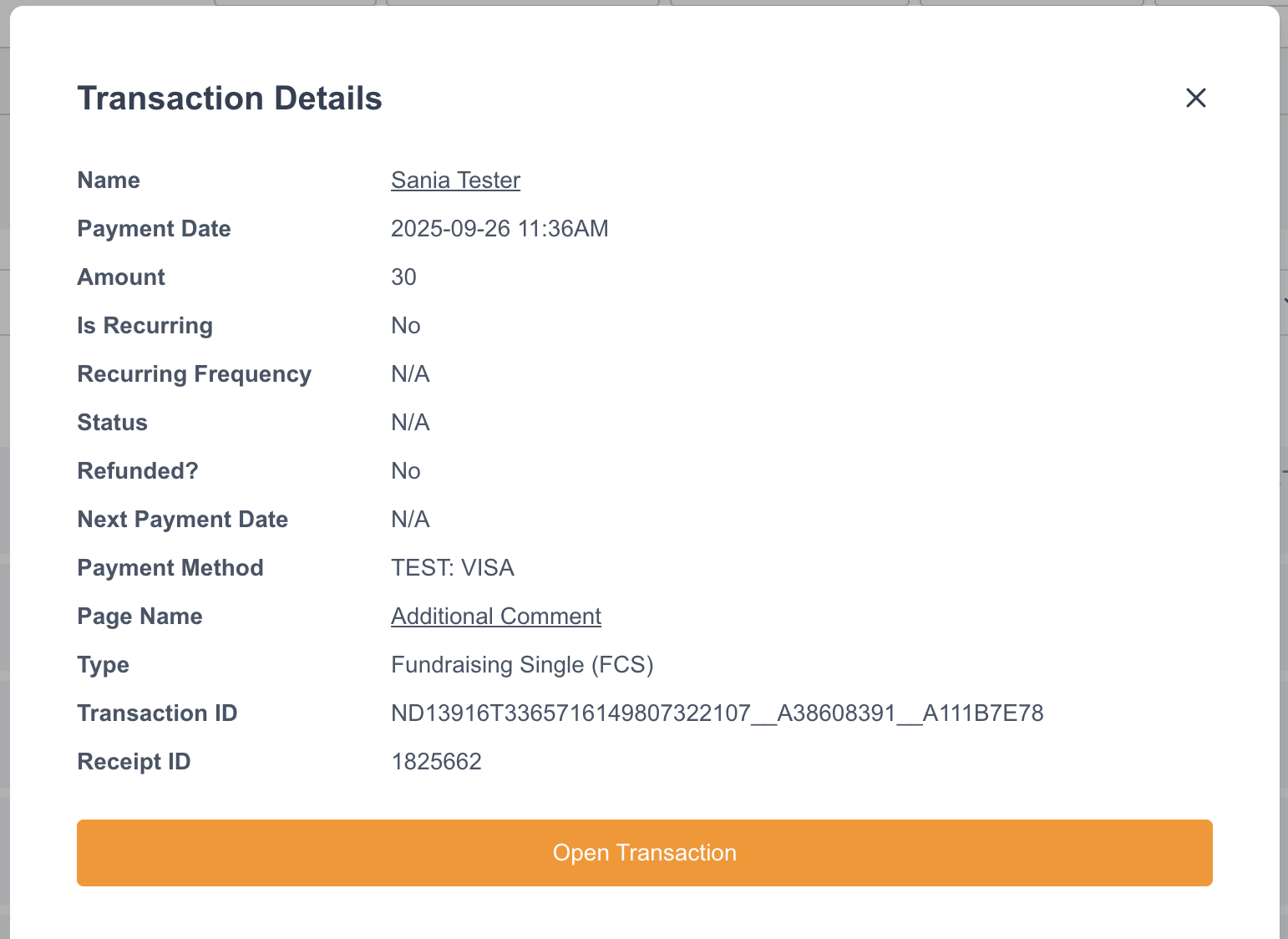
Transaction ID
Gateway transaction ID
Receipt ID or donation log ID
Receipt ID or donation log ID (if the transaction has not been receipted).
Select to further manage the individual transaction
This will open the transaction in the transaction series in the Recurring Donation Gadget. From the gadgets, transactions can be managed, refunded, updated, or cancelled.
Updating transactions
After searching for donations, you can select the checkbox next to the relevant transaction/s to make changes to them
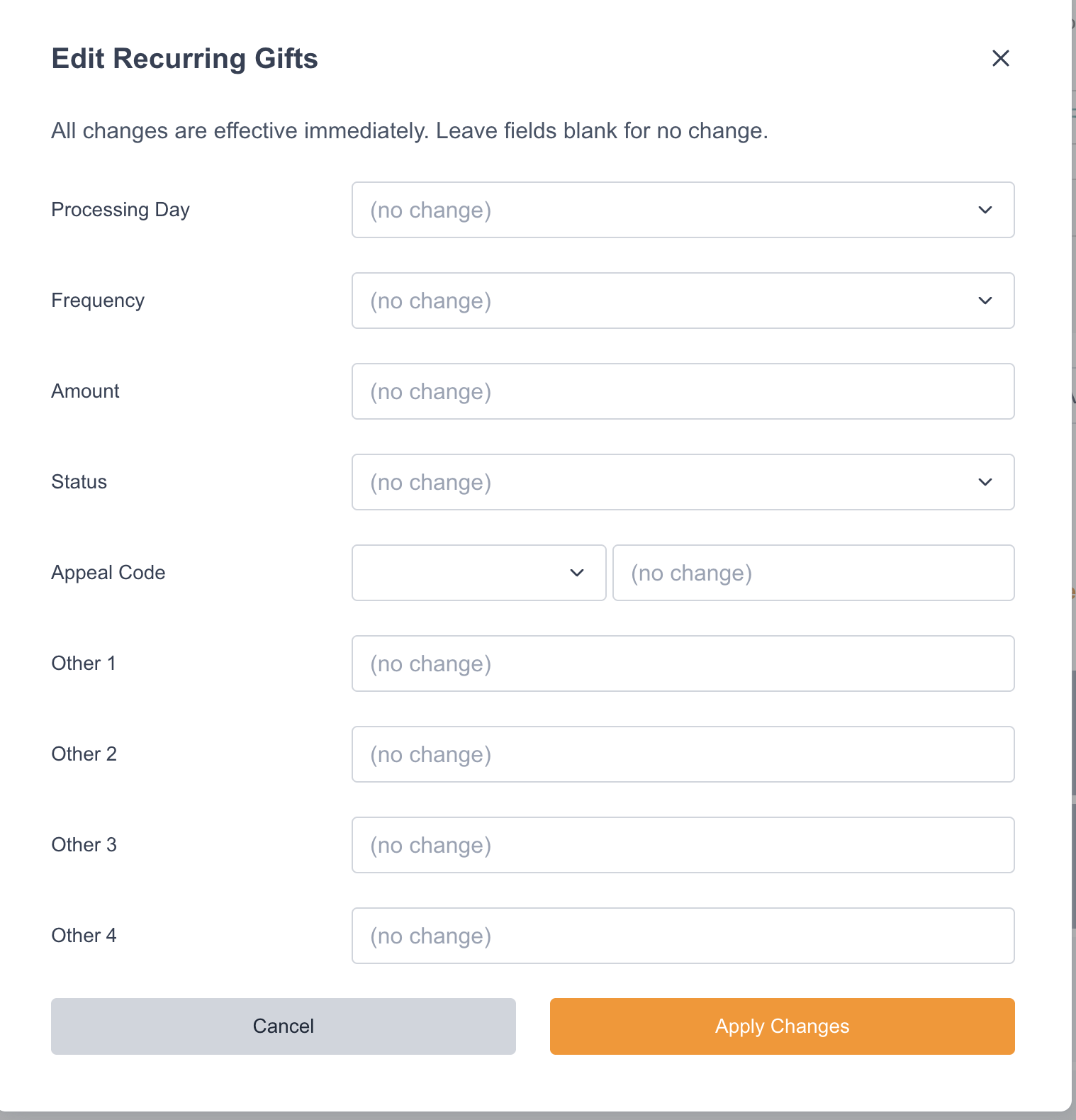
Select the button to open an overlay of fields to be updated
Field
Definition
Processing Day
Day the recurring transaction is processed
Frequency
Monthly, Quarterly, Annual
Amount
Amount of donation (numbers only)
Status
ActivePausedCanceled
Appeal Code
Select from dropdown to change the value of the tagged Appeal Code or Direct Gift fields or External Reference Fields 1-10
Other 1-4
Change the value of the tagged ‘Other’ fields
Enter applicable field changes and select
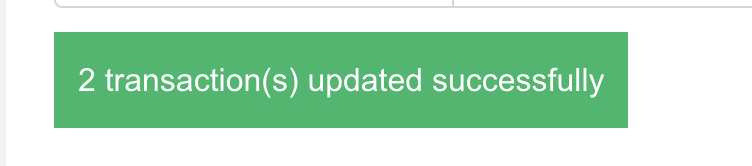
After processing, the area that previously had the button to update transactions will display if the transactions were successfully or unsuccessfully updated
Permissions
Users need the following permission in order to utilize Recurring gifts view.
To view a list of transactions: Data Management > Manage Individual supporters > ‘View’ permission
To see details about transactions and open transactions the following additional permissions are needed: Page > Page Type > Donation Page > ‘View’ Permission