Skip table of contents

Smart Pages Setup

You can create, edit, test, delete, and view analytics in the My Smart Pages window.

Create and edit Smart Page

Once you’ve set up your global settings, creating a smart from scratch is quick and easy.

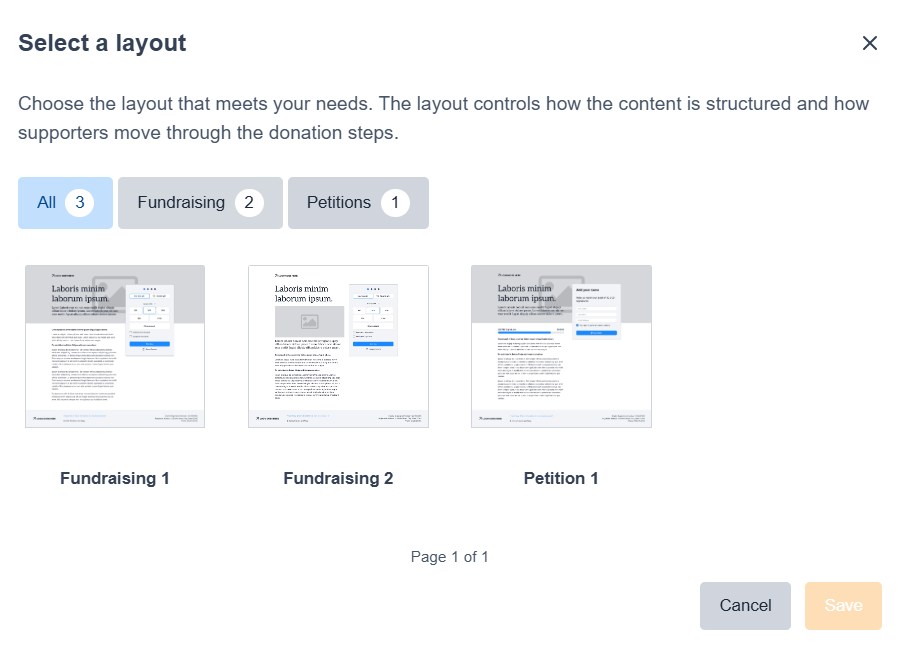
  1. Select: Create Smart Page Create smart page button and select your layout

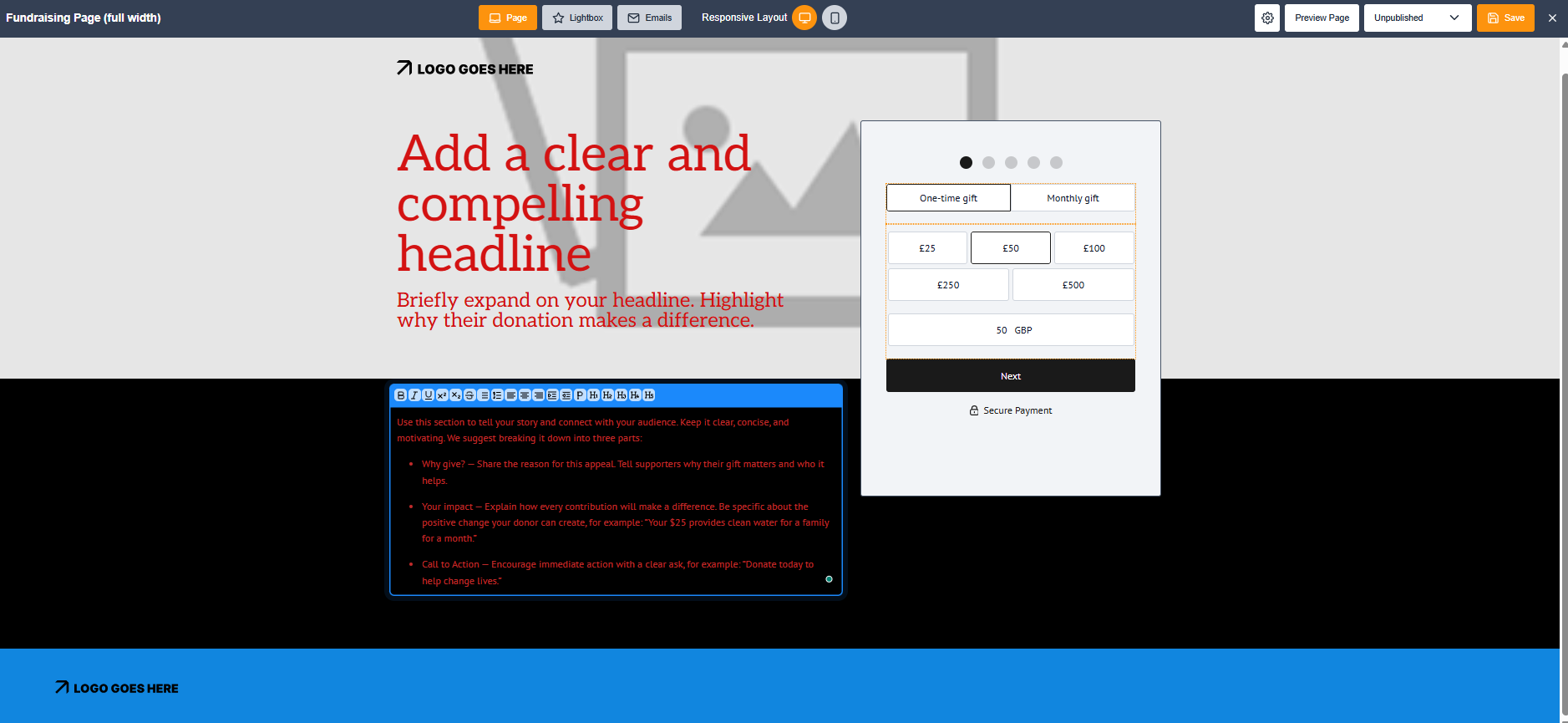
  • Fundraising Page 1: Template with full-width background image

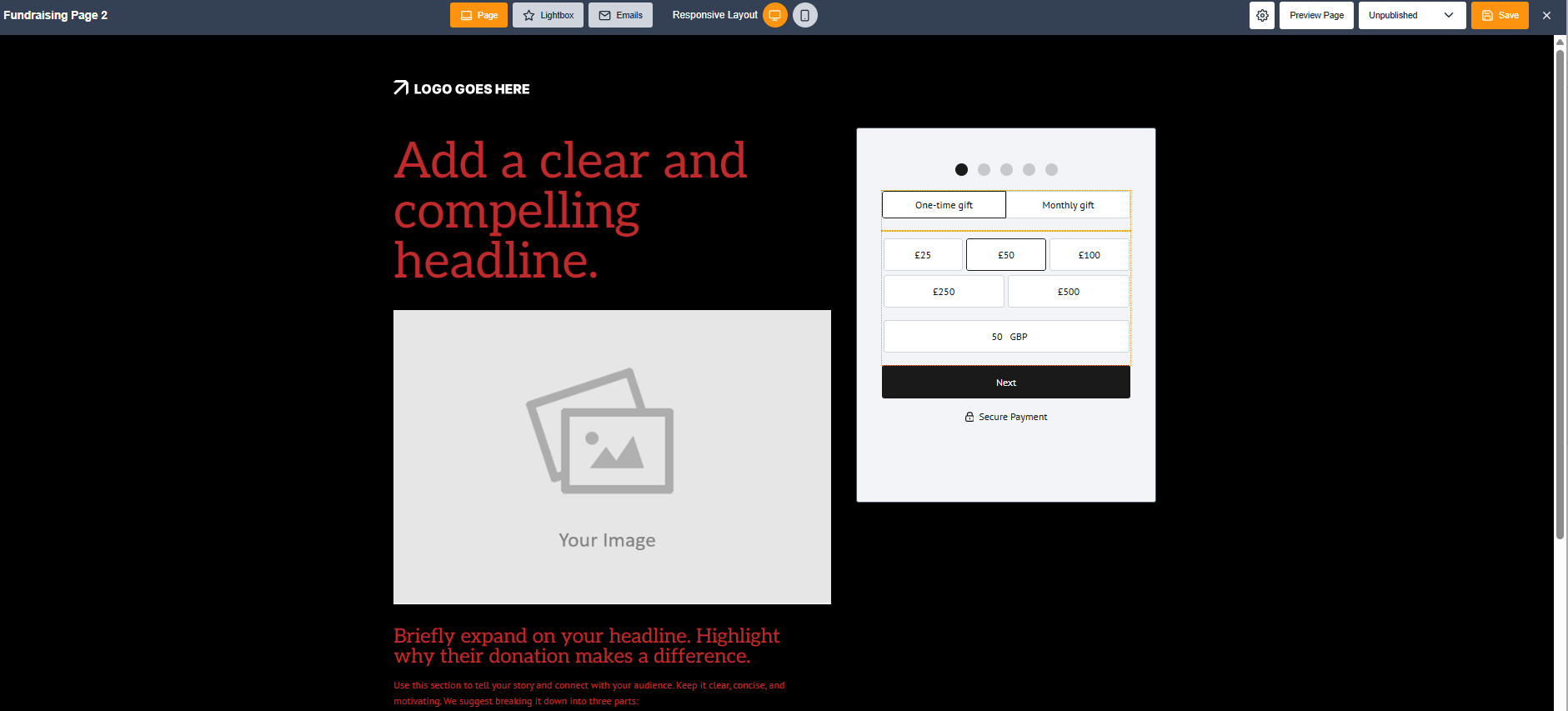
  • Fundraising Page 2: Template without full-width background image

Image of select a layout menu

  1. Choose to view as a page Page selector button

    or lightbox* Lightbox selector button > Select the content areas you wish to edit; they will then be highlighted in blue. The editable areas are:

  • Header copy

  • background or body image

  • body text

Lightbox and page copy is synced so editing lightbox also updates the page

Picture of a smart page using the Template with full-width background image

Picture of a smart page using the template without full-width background image

  1. To edit the form, highlight and select the area you want to edit > you can do so between steps using the step buttons Next step button

    The form steps are:

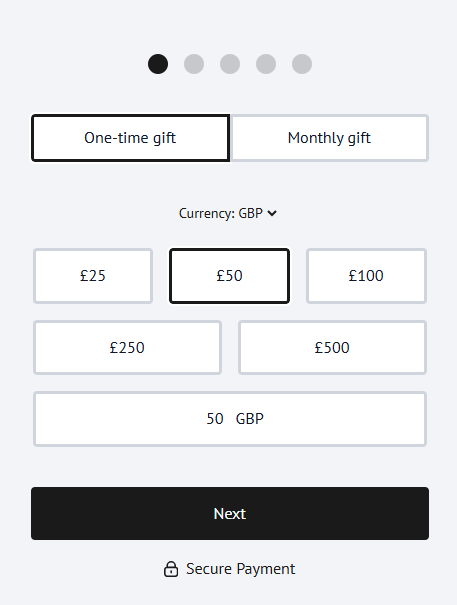
  • S1: Frequency/Donation Selector

    • Default or secondary:

      • one time, monthly, quarterly, annually or none (secondary only)

    • Enable animation

    • Edit Gift Amounts

      • Choose separate amounts by currency and frequency

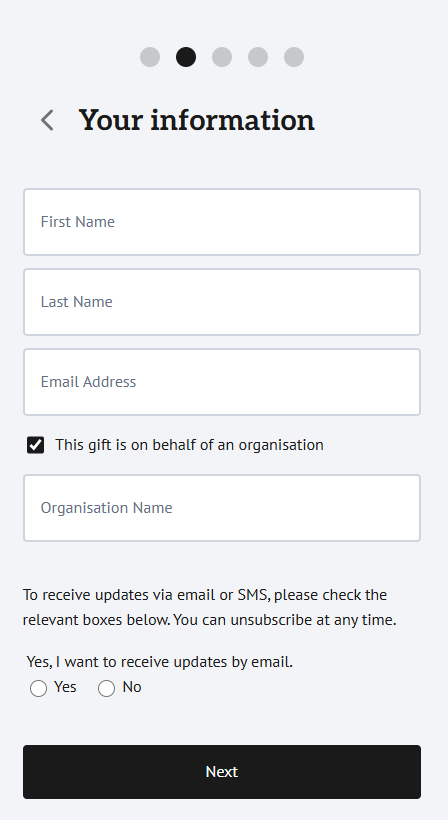
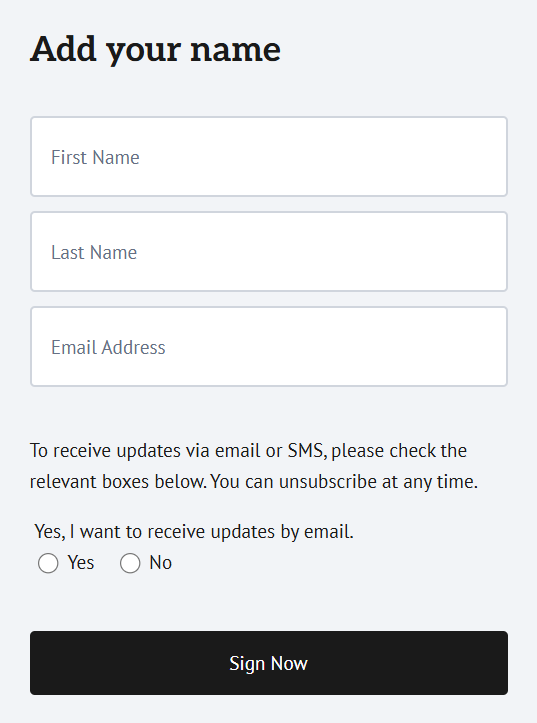
  • S2: Supporter Information Fields

    • Add/Remove phone number

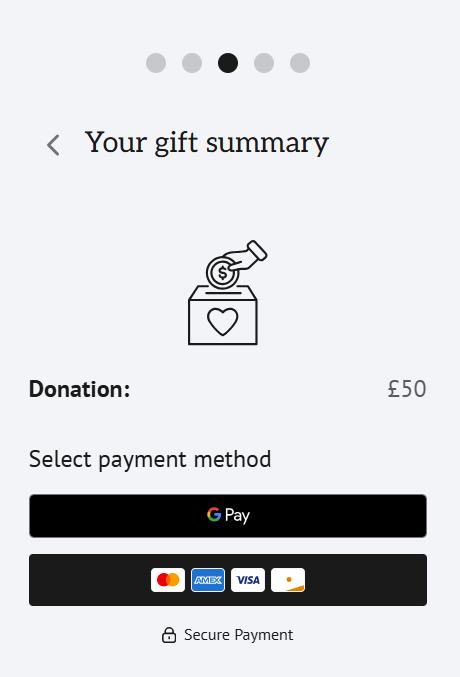
  • S3: Summary/ Choose Payment Method (not editable)

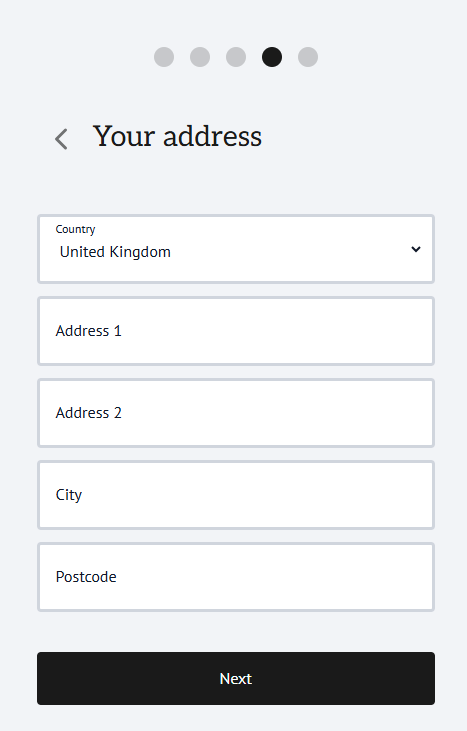
  • S4: Address (not editable)

    • Skipped when using a digital wallet

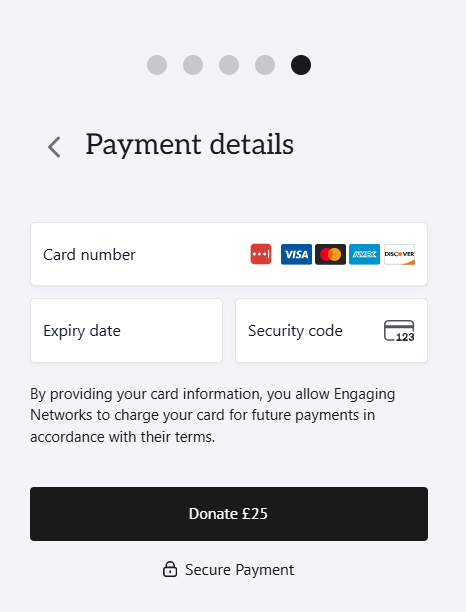
  • S5: Card Payment (not editable)

    Skipped when using digital

  • S6: Thank you

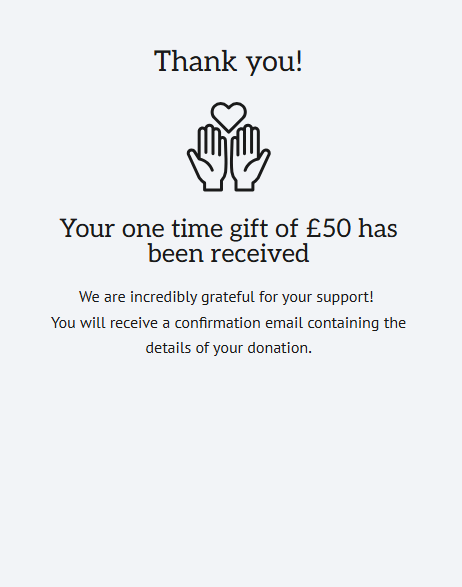
    • Edit one-time or recurring message

Image of Step 1 Frequency and Donation Selector

Image of step 2 Supporter Information Fields

Image of step 4 Summary and  Choose Payment Method

Image of step 4 Address

Image of step 4 Card Payment details

Image of step 6 the thank you page

  1. Once you’ve edited, save will be enabled. Save button To view and test your page or lightbox, select preview.

  2. Pages are set to unpublished at creation, can be published when you are ready to go live, and closed once you have finished using them.

Image of smart pages menu tab

Edit Smart Page Emails

On SmartPages, you can edit emails for one-off or recurring donations using the same email builder from marketing tools broadcasts. To use the email function, you must have a thank-you email sender set up. To set one up, go to: Hello ‘Your name’ > Account Settings > Account Emails

  1. Emails button To view your emails, select the email button in your smart page and select to edit either the one-time gift or recurring gift email.

  2. Then select the email to open the email editor.

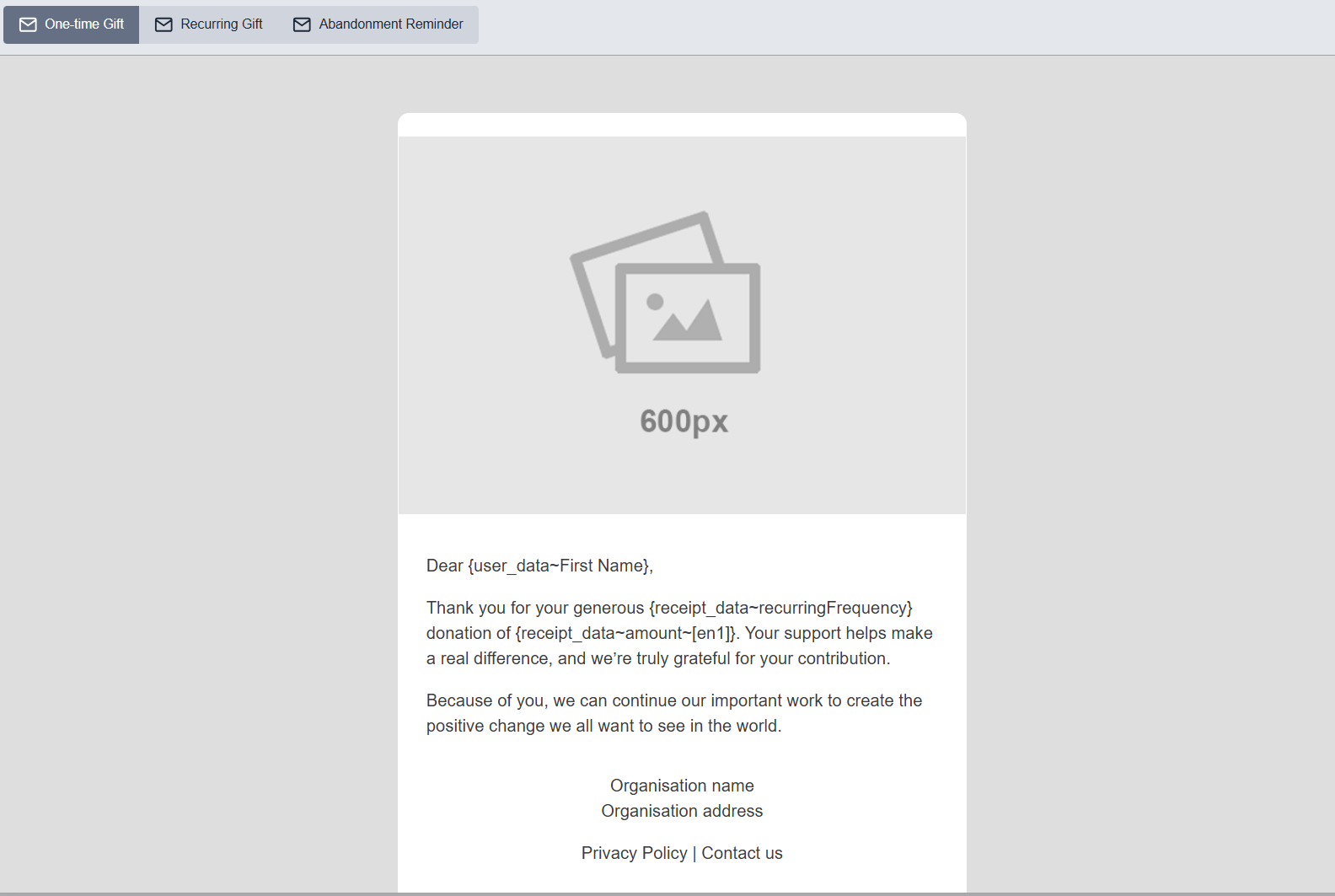
Image of smart pages email editor
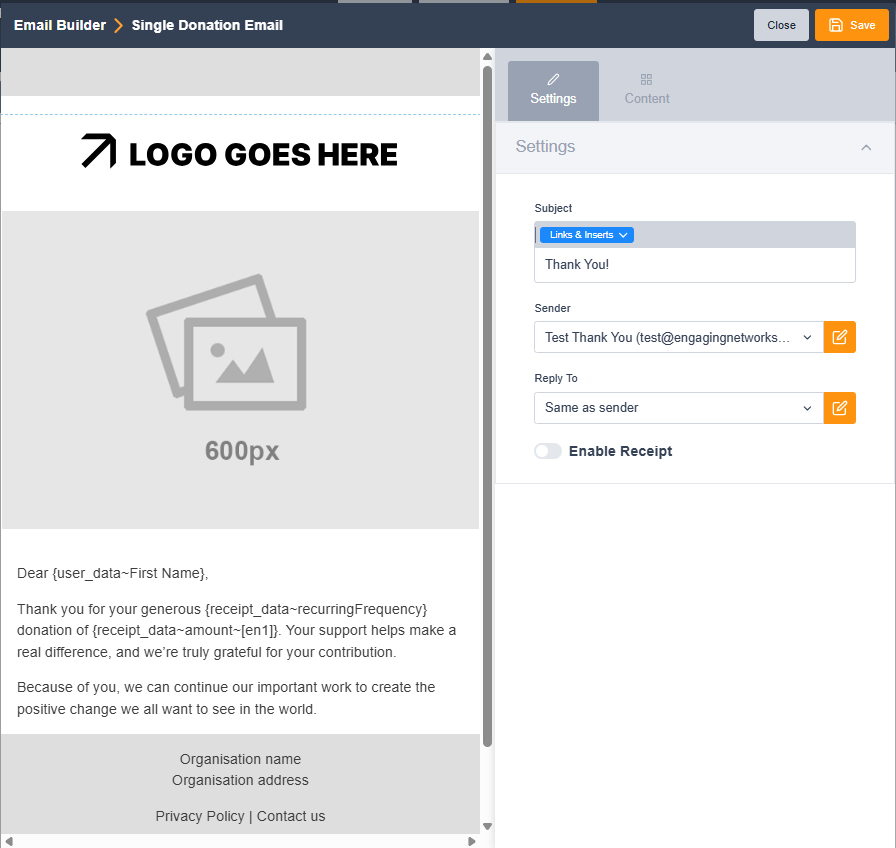
Image of smart pages email editor with settings displayed

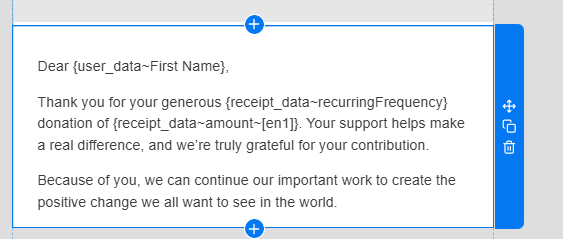
  1. To edit your email, select the required section until it is highlighted in blue. Choose to:

  • Add new, New block iconmove, Move block icon duplicate, Duplicate block icon or delete Delete block icon

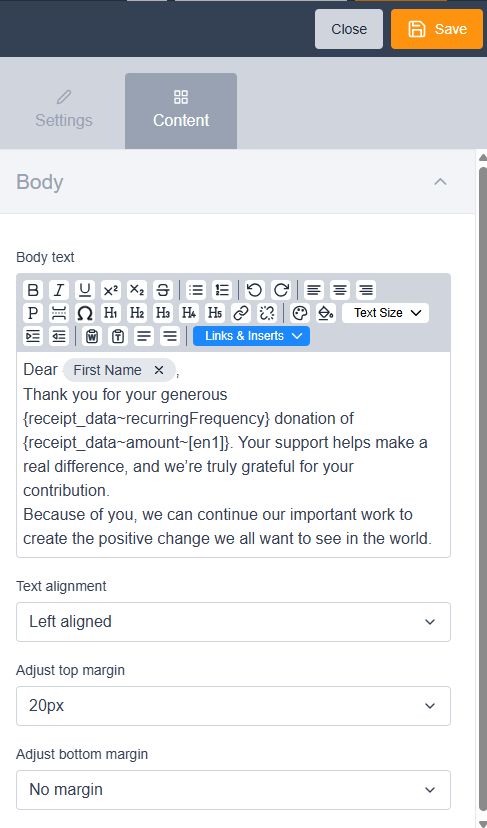
  • Edit via the content area.

Image of a text block selected in the email builder

Image of a text block editor in the email builder

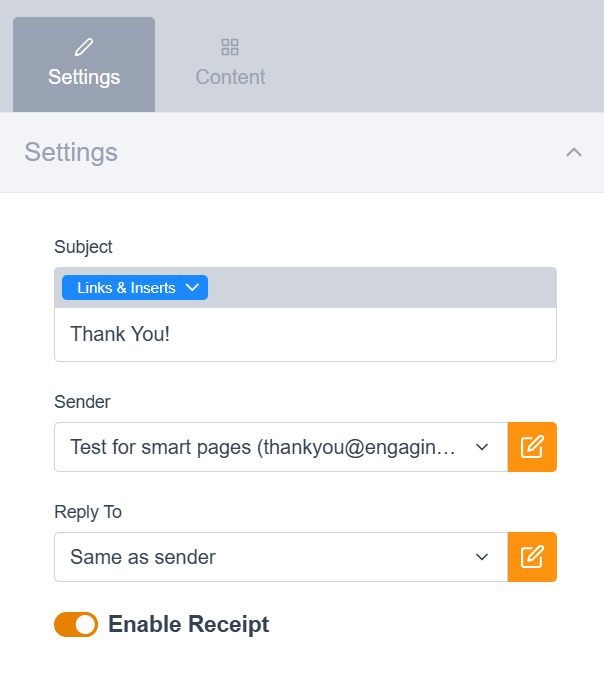
  1. Go to settings to:

  • Add/Edit a Subject line

  • Choose the sender and reply to the domain

  • Enable or Disable Receipting

  1. Once you’ve completed editing, click Save. Save button

Image of the settings tab in the email builder

Smart Page Settings

Once you’ve set up your global settings, you can also edit the page settings at a local level.

Page settings button

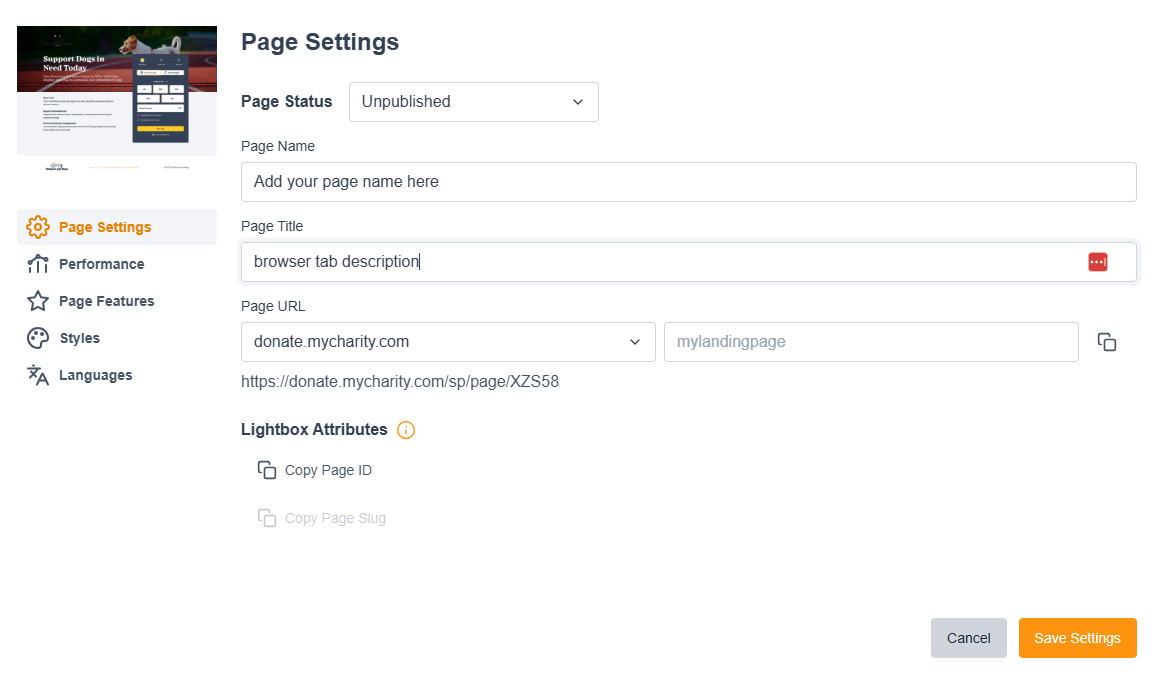
Edit the following page settings here:

  • Page Status:

    • Unpublished, Published or Closed

  • Page Name: Your internal name for the page

  • Page Title: The page title displayed on the browser tab

  • Page URL: Choose the subdomain and add a short code/page slug if required

  • Light box attributes: Copy the required attribute for setting up your lightbox parameter: data-sp-page=”123”

Image of the page settings screen

Performance settings button

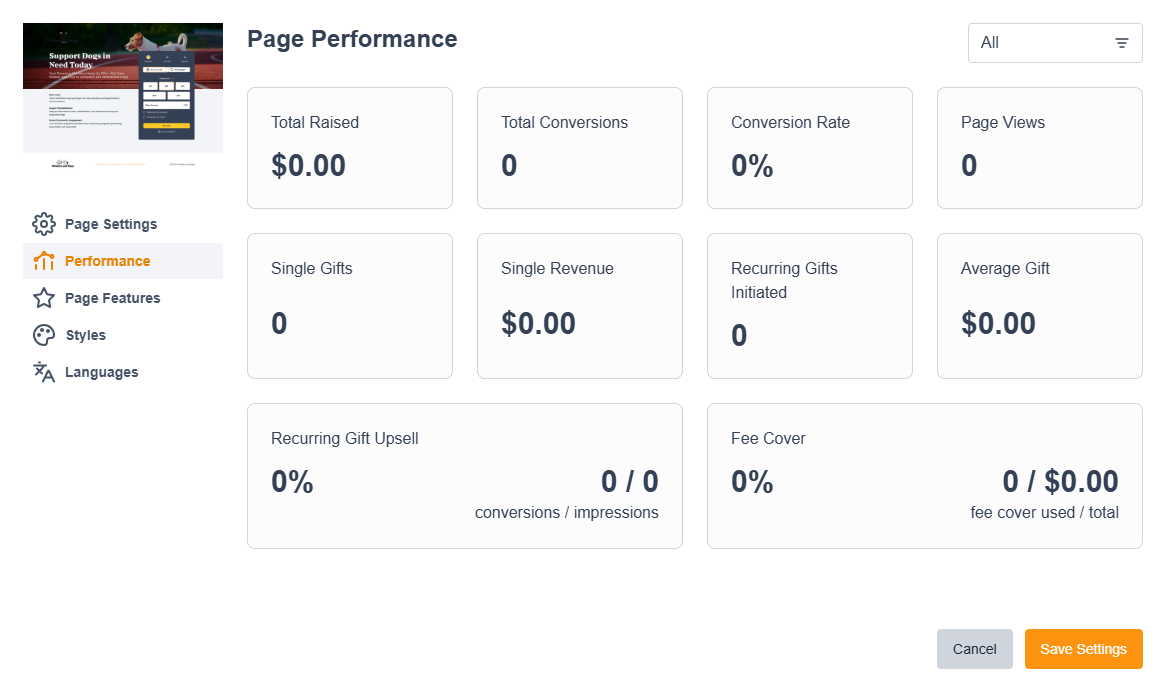
The page performance Page performance button provides details on key metrics, including:

  • Total raised, total conversions, conversion rate and page views.

  • Number of single gifts and total raised.

  • Number of recurring gifts initiated and average value.

If settings are enabled, additional metrics include:

  • Recurring gift upsell rate and fee cover rate

Image of the page performance screen

Page features button

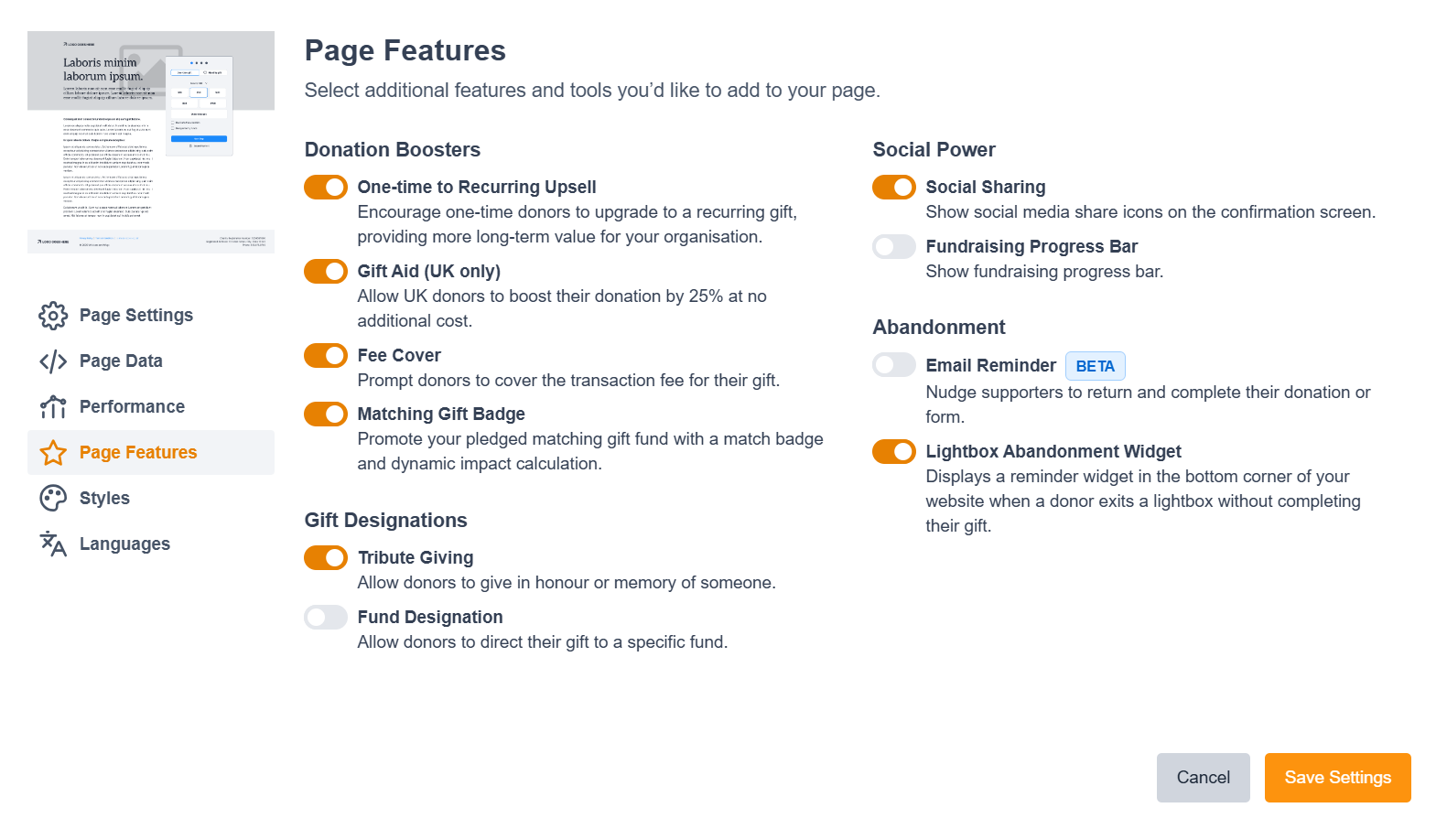
Page features allow the enabling and disabling of additional features and tools for use and inclusion on your page’s form:

  • One-time to Recurring Upsell: Creates an additional editable section on your form to encourage one-time donors to upgrade to a recurring gift.

  • Gift Aid (UK only): Creates an additional editable section on your form for UK organisations to request Gift Aid from eligible donors.

  • Fee Cover: Appears on the summary/payment screen, where you can edit the cover %, label and help message.

  • Tribute Giving: Adds a checkbox to the frequency/amount step, allowing donors to dedicate their in-honour or in-memory donations.

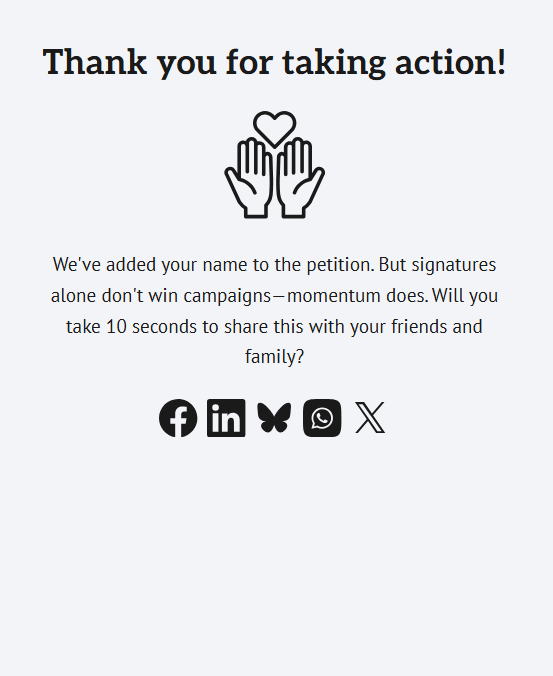
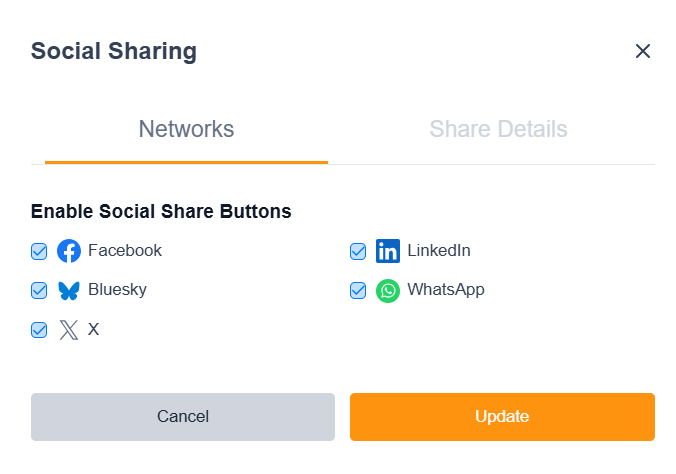
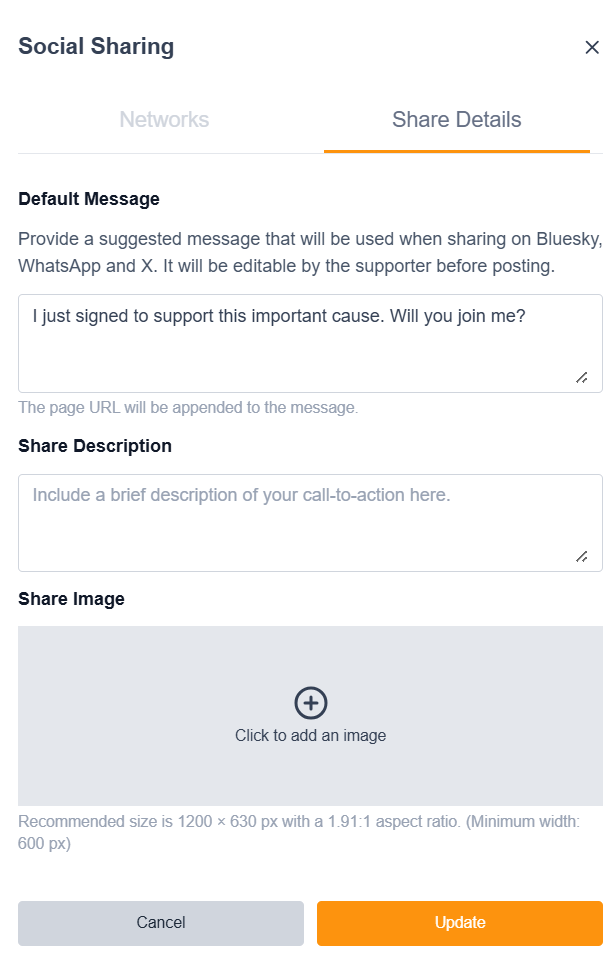
  • Social Sharing: Adds social share buttons to your forms’ thank-you pages.

Image of the page features screen

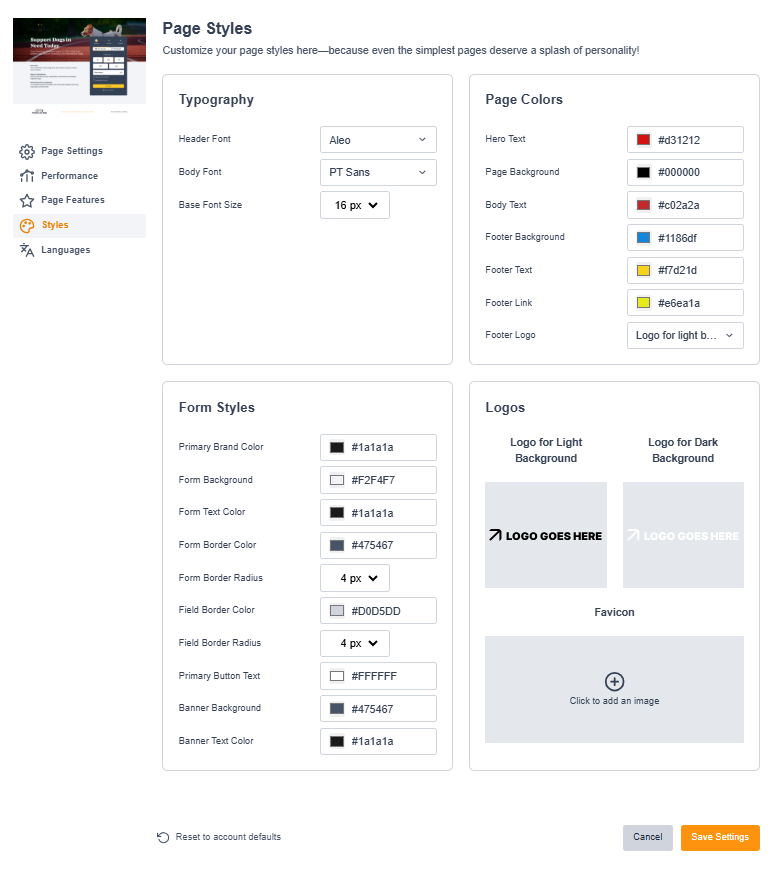
Page style button
Styles allow you to edit the global style settings you’ve enabled locally:

  • Typography

  • Page Colours

  • Form Styles

  • Logos

  • Reset Styles: To revert to the global style setting on your page, select Reset to account defaults: Reset to account defaults button

Image of the page styles screen

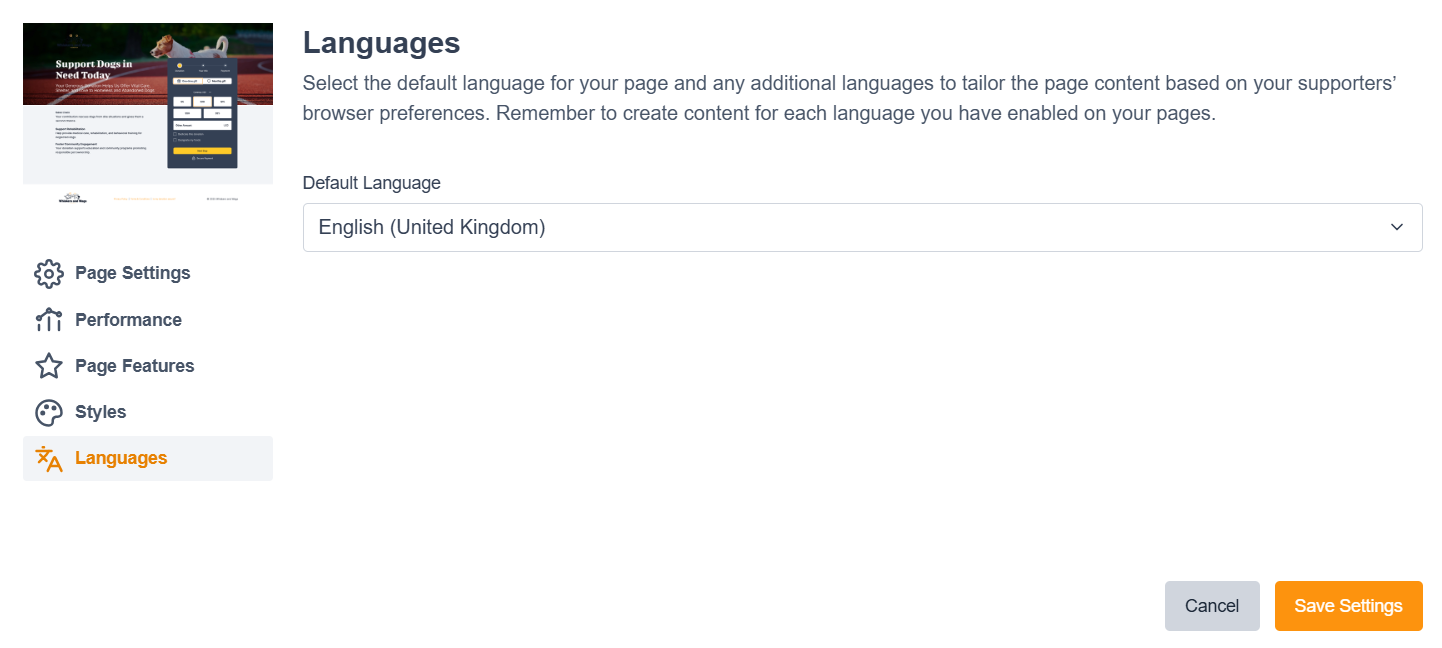
Page language button

Select the default language for your page and any additional languages to tailor the page content based on your supporters’ browser preferences. Once enabled, you will need to create content for each language on your page.

Image of the page language screen

JavaScript errors detected

Please note, these errors can depend on your browser setup.

If this problem persists, please contact our support.