
Survey Results will show you the answers that your supporters have submitted on a Survey page. To view your Survey Results, click on the page you are interested in, so it slides open:
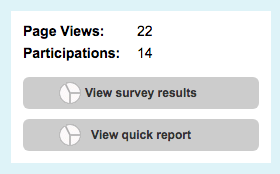
Then click on “View survey results”. What you see in this report will depend on the survey questions you used, but every page has these top-line stats:
-
Supporters who started the survey – the number of that began taking the survey
-
Supporters who complete the survey – the number of supporters that fully completed the survey
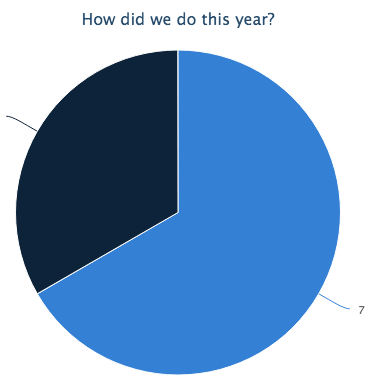
The questions you used on your survey will be listed below these stats along with any responses that were given.
Downloading survey results
You can download these responses by clicking the “Download answers” button. You will then need to choose a date range, and a CSV file will be created for you to download from your browser. The file will have these columns:
-
Supporter ID – the unique ID of the supporter that answered the survey
-
Supporter Email – the email address of the supporter that answered the survey
-
Date – when the supporter complete the survey
-
Supporter First Name / Supporter Last Name – the first and last names of the supporter that completed the survey
-
Subsequent columns – a column will be created for each survey question you have, with the response value below