Event reporting and management

Events pages have various administrative tasks Users can complete to manage the Event, tickets, and the attendees. To access these tools, click to expand the Event page from Manage Pages menu.
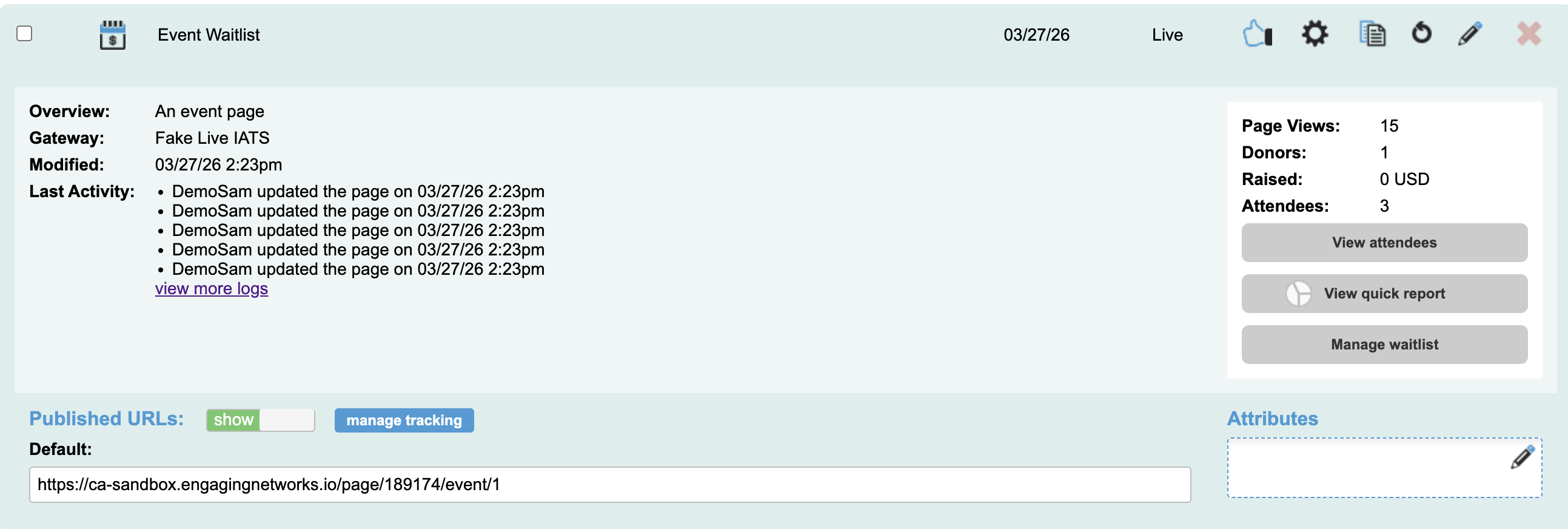
image-20260327-193659.png

View Attendees

Users can see a list of attendees for an event and make changes to them, or update their attended status.

Single event

  1. Click to expand the Event Page and select the image-20260327-194049.png button.

image-20260327-193659.png
  1. That will display a list of attendees and their information. Users can navigate into the attendee record to make changes or change their attendee status

You can change the columns included in the list by selecting the image-20260327-194524.png and selecting additional fields.

image-20260327-194744.png

Click this icon to view the full Attendee details. From this screen you can change the attendee detail values, ticket details, and can also mark the attendee as arrived

image-20260327-194733.png

Not arrived. Attendee status is marked as ‘attending’

image-20260327-194725.png

Arrived. Attendee status is marked as ‘attended’

Recurring event occurrence

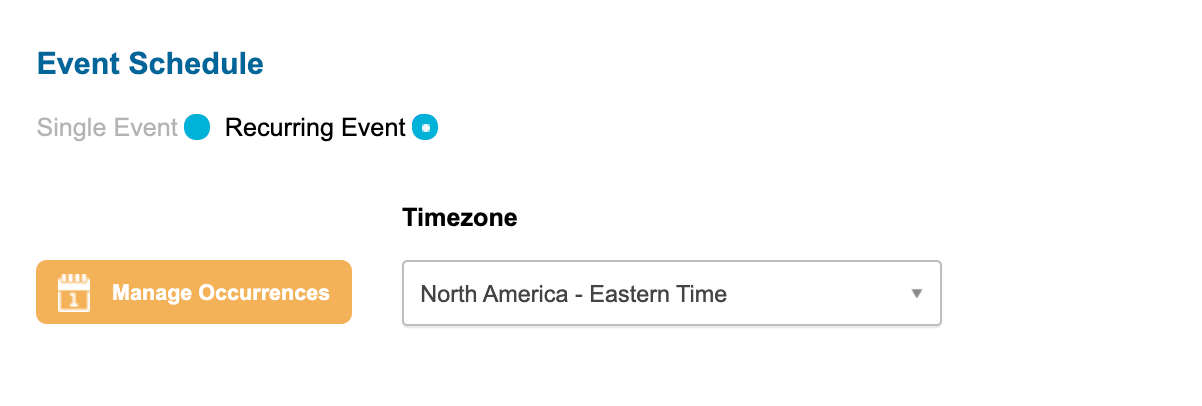
  1. Navigate to the page admin settings ( image-20260805-131815.png ) > Event Details > Event Schedule and select image-20260805-192515.png

EventDetails_Recurring.png
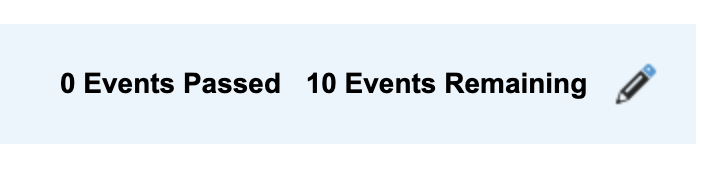
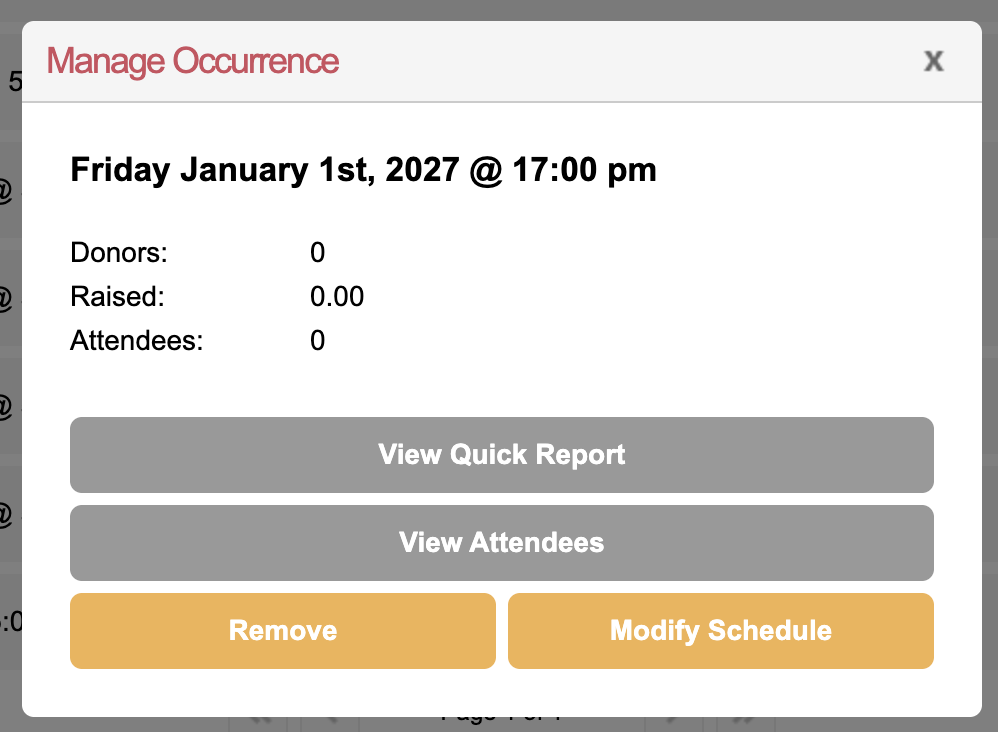
  1. Find and click into the occurrence on the calendar or use the edit the occurrences on the top of calendar the one you want to review or modify

image-20260805-202630.png


  1. Click the image-20260805-202828.png icon to expand the event details and select View Attendees

image-20260805-202904.png
  1. That will display a list of attendees and their information. Users can navigate into the attendee record to make changes or change their attendee status

image-20260327-194744.png

Click this icon to view the full Attendee details. From this screen you can change the attendee detail values, ticket details, and can also mark the attendee as arrived

image-20260327-194733.png

Not arrived. Attendee status is marked as ‘attending’

image-20260327-194725.png

Arrived. Attendee status is marked as ‘attended’

Quick Report

Single event

  1. Click to expand the Event Page and select the image-20260327-200307.png button.

image-20260327-193659.png

Recurring Event Occurrence

  1. Navigate to the page admin settings ( image-20260805-131815.png ) > Event Details > Event Schedule and select image-20260805-192515.png

EventDetails_Recurring.png
  1. Find and click into the occurrence on the calendar or use the edit the occurrences on the top of calendar the one you want to see the report for

image-20260805-202630.png


  1. Click the image-20260805-202828.png icon to expand the event details and select View Quick Report

image-20260805-202904.png

Field

Description

Total ticket sales

The total number of tickets sold across all ticket types for the event.

Total amount

The overall monetary value collected, including ticket purchases and any additional contributions.

Total sales

The total revenue generated specifically from ticket sales (excluding additional donations).

Total donation

The total amount contributed as additional donations on top of ticket purchases.

Discount code used

The number of times discount or promo codes have been applied to purchases.

Fee covered

The total count of transactions where a fee was covered

Manage Waitlist

  1. Click to expand the Event Page and select the image-20260327-200735.png icon

image-20260327-193659.png
  1. This will open a list of supporters on the waitlist to view and manage

Field

Description

Ticket Type

Identifies the ticket the supporter is on the waitlists for

Date

The date the supporter joined the waitlist

First Name

The supporter’s first name.

Last Name

The supporter’s last name.

Email Address

The email address of the supporter.

This address will receive the waitlist autoresponder emails.

Status

On Waitlist: Supporter is still awaiting a ticket

pending: A ticket has been released to the supporter, but not yet claimed by them

claimed: A ticket has been released and the supporter has claimed it. These are only visible from the downloadable list.

  1. To release a ticket, select the checkbox to the left of the supporter. Two additional buttons will appear on the screen.

image-20260327-202516.png

Releasing the ticket will send the Ticket claim email autoresponder to the supporter. Their status will shift to pending until they click through the email and submit the page to take the ticket which will update their status to claimed and they will be removed from the waitlist.

image-20260327-202558.png

This will remove the supporter from the waitlist